

The best outreach platform isn’t necessarily the one with the longest feature list. Email outreach automation tools can schedule multi-step campaigns, automate follow-ups, and sync prospect and engagement data with a CRM. The details matter: tools differ in how they build sequences, manage replies, and keep records aligned.
It’s easy to focus on sending emails faster, but automation helps only when it fits the way your team works. A sequence that’s hard to adjust or a CRM connection that leaves gaps can create more manual work, not less.
This comparison explains how outreach software handles sequencing, follow-ups, CRM synchronization, and campaign features. You’ll see what to compare, how tools differ, and how to match one to your workflow instead of choosing by feature count alone.
Key Takeaways
- Compare how tools personalize messages, schedule follow-ups, and support a consistent outreach workflow.
- Assess whether CRM synchronization keeps contact details, campaign activity, and replies aligned.
- Look beyond sending automation to compare the controls that shape day-to-day campaign management.
- Use your workflow priorities to narrow the options, then explore software recommendations that fit your evaluation needs.
What Is Cold Email Automation Software?
Cold email automation software creates outbound messages, organizes them into sequences, and schedules follow-ups. Email outreach tools can personalize messages using AI or database fields, then send another message if a prospect hasn’t replied.
AI-Generated Email Sequences
AI-generated sequences use a prompt or prospect details to draft connected messages. For example, a sales engagement workflow might tailor an opening message to a prospect’s role, then suggest a follow-up about a relevant business challenge. Unlike merge tags, AI can shape more of the wording. Treat generated copy as a draft: review its claims, tone, and relevance before sending.
Merge Tags and Custom Fields
Merge tags insert database values into a message, such as a first name, company, job title, or industry. A custom field might hold a detail like “uses Salesforce” or “hiring sales staff,” which can inform a sentence. This approach is more predictable than AI-generated copy: the text follows a template, while the contact record supplies each value.
Custom visuals add another layer of personalization. A sender could include a prospect’s company name in a graphic or use a tailored product screenshot instead of relying only on text. AI-assisted writing can suggest copy for the image, but the sender still needs to match the visual to the recipient. Some platforms also offer autonomous SDRs: AI agents that can research prospects, create messages, and manage outbound steps. Their scope varies, so distinguish drafting from sending and follow-up controls.
| Approach | Personalization input | Best comparison point |
|---|---|---|
| AI sequence | Prompt and prospect context | Draft flexibility |
| Merge tags | Database fields | Template consistency |
| Custom visuals | Company or product details | Image relevance |
| Autonomous SDR | Prospect research and workflow rules | Level of automation |
Choose based on your priority: flexible copy, reliable fields, relevant visuals, or broader automation.
Cold email sequencing and automated follow-ups
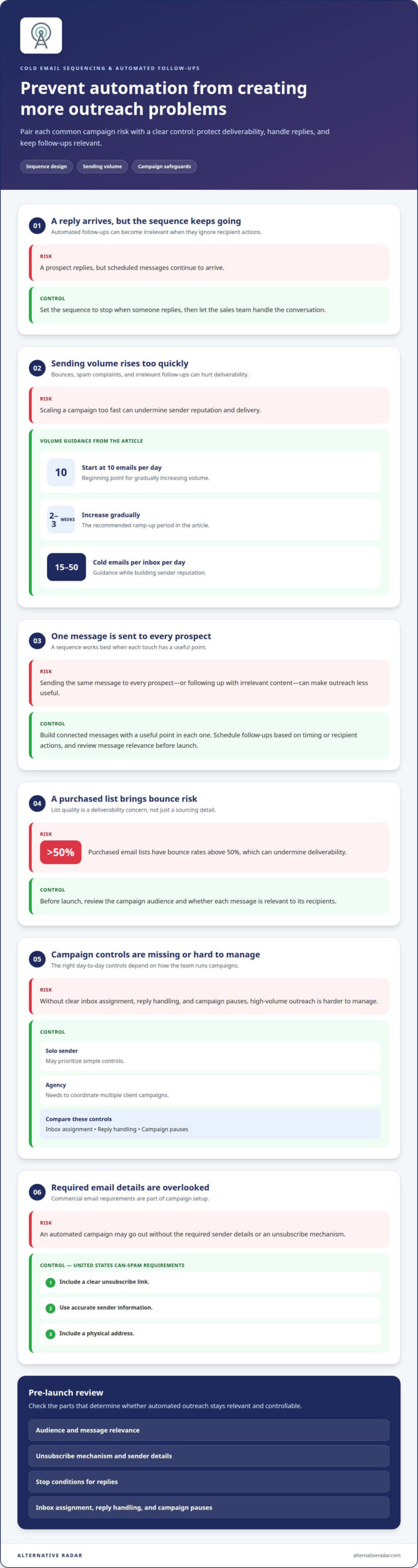
In the United States, CAN-SPAM requires commercial email to include a clear unsubscribe link, accurate sender information, and a physical address. Automated outreach can also hurt deliverability through bounces, spam complaints, or irrelevant follow-ups.
Automated Cold Email Sequences
A cold email sequence schedules connected messages, then sends follow-ups based on timing or recipient actions. A sequence can include several steps, with a useful point in each message. Unlike a one-off campaign, a sequence spaces prospecting across several touches. Set it to stop when someone replies, then let the sales team handle the conversation.
For high-volume campaigns, inbox management matters as much as sequence design. Gradually increase volume over 2-3 weeks, starting at 10 emails per day. While building sender reputation, the guidance recommends 15 to 50 cold emails per inbox per day. Compare email tool features for inbox assignment, reply handling, and campaign pauses. A solo sender may prioritize simple controls, while an agency needs to coordinate multiple client campaigns.
Email Outreach Tool Costs
These use cases differ, so compare total setup needs, not just the sending plan.
Common mistakes include sending the same message to every prospect, scheduling follow-ups after a reply, and scaling volume too quickly. Purchased email lists have bounce rates above 50%, which can undermine deliverability. Before launch, review each campaign’s audience, message relevance, unsubscribe mechanism, and stop conditions. Then compare tools by how clearly they manage those steps, rather than by feature count alone.
CRM integrations and data synchronization
A CRM connection links outreach activity with contact and pipeline records. For example, when a prospect replies, the system can update the conversation status and create a follow-up task. Check whether synchronization works both ways or only sends data from the email tool to the CRM. One-way transfers can leave account owners with incomplete records.
Map fields before connecting systems. Match email address, account name, owner, campaign status, and last activity to their CRM fields. Then decide which system controls each value. If Salesforce owns account records, for example, outreach edits shouldn’t overwrite its account owner. Review duplicate-handling rules and verification steps so existing contacts don’t split into separate records.
Other channels add coordination needs. A sales team might use LinkedIn for prospecting and email for sending, while the CRM tracks both interactions. Check whether the integration logs the channel, date, owner, and conversation outcome. Without that context, a pipeline view might show an email task but miss a LinkedIn interaction. Email accounts also need clear ownership, especially when several representatives share a CRM.
Integrations with other tools vary in setup and flexibility. A native CRM connection can map common fields directly; a Zapier workflow can pass information between supported apps through trigger-and-action rules. For example, a new CRM lead could trigger a task in another system. Compare setup effort, available fields, sync direction, and error visibility. A workflow that fails silently can leave sending activity out of the account history.
- Contact sync: Compare field mapping, duplicate handling, and record ownership.
- Activity sync: Confirm campaign touches, replies, and conversation outcomes appear in the CRM.
- Workflow sync: Review triggers, actions, and error reporting across connected apps.
Choose integrations by tracing one prospect from the first email through CRM pipeline updates, LinkedIn activity, and the next sales task.
Email outreach automation features
A feature list helps only when each capability supports a clear campaign decision. Compare tools by how they control sending, surface engagement, and help teams diagnose delivery problems. For example, analytics that separate replies from bounces reveal more than a single total-send figure.
Start with workflow controls. Check whether you can pause a campaign, stop messages after a reply, and exclude a contact from another sequence. These controls help prevent duplicate outreach when a prospect’s status changes. A useful workflow also shows which action triggered the next message, so sales teams can review automation instead of guessing.
Next, assess reporting. Views of opens, replies, bounces, and unsubscribes help identify different issues. Reply trends can inform message relevance, while bounce data can reveal contact-list quality problems. Check whether reports can be filtered by campaign, sender, or audience segment. That detail helps distinguish a weak target list from a message that needs revision.
Deliverability features deserve a separate review. Look for visibility into sending status, bounce handling, and account-level activity. These capabilities help teams spot problems early, but they don’t replace relevant targeting or careful list management. For a practical comparison, test a shortlist on 50 prospects and record contact validity, draft quality, replies, bounces, and required human intervention.
Custom reporting, testing options, and team permissions can also affect fit. A small team may need a simple view of replies; an agency may need campaign-level reports across accounts. Compare how tools assign ownership, control edits, and share performance summaries. Prioritize features that make the next action obvious, not tools that simply display more metrics.
- For campaign control: Compare pause, stop, and exclusion rules.
- For analysis: Compare engagement filters and bounce visibility.
- For team use: Compare permissions and ownership settings.
Use these criteria to compare outreach software options by the workflow your team needs.
Alternative Radar
Alternative Radar helps readers compare software options when their campaign needs point to a new tool. The platform presents software insights, including features, pricing, pros, and cons, to support an informed shortlist. Use the comparison after identifying which outreach capabilities matter most, such as sequencing, CRM synchronization, or campaign controls.
Alternative Radar also offers affiliate-linked software recommendations, sponsored software placements, and programmatic display advertising. These offerings support software discovery, while this article’s comparison criteria help you assess which options fit your workflow. Consider tools that match your team’s priorities instead of choosing by feature count alone.
For help with software discovery or advertising opportunities, contact Alternative Radar.
Turn Your Shortlist Into a Practical Decision
Before choosing email outreach automation tools, define what a successful working day looks like for the people using them. Map one prospect’s path from initial research to a completed conversation, and identify where the platform should reduce manual handoffs. This keeps your decision tied to your team’s actual process, not a feature checklist built for someone else.
Next, agree on who owns campaign setup, message review, and CRM updates. Clear ownership helps teams spot workflow gaps early and assess whether a tool fits daily operations. Record your priorities, then use them to guide the final selection.
If software discovery is your next step, contact Alternative Radar for help.
Keep your workflow in view, and create a shortlist your team can put to work.
Frequently Asked Questions
What are AI outreach tools?
AI outreach tools use artificial intelligence to support prospect research, message drafting, personalization, or campaign decisions. For example, a tool might suggest an opening based on a prospect’s role, then let a representative edit it before sending. Capabilities vary: some tools assist with writing, while others automate broader sales tasks. Treat generated content as a working draft and check its accuracy and relevance.
What are the benefits of using an outreach automation tool?
An outreach automation tool can reduce repetitive campaign administration and make team processes easier to standardize. A sales manager could use shared templates and review rules to keep messaging consistent across representatives. Activity records can also help teams see which prospects need attention. The main benefit depends on the bottleneck: choose workflow automation for manual tasks, or reporting tools when campaign visibility is the larger problem.
What are the best email outreach automation tools in 2026?
The best option in 2026 depends on your team’s workflow, not a universal ranking. A founder working alone may prioritize quick setup and clear campaign controls, while a larger sales team may need role permissions and shared reporting. Build a shortlist around your daily tasks, then compare how easily each platform handles them. A tool is a stronger fit when its core workflow feels clear without extra workarounds.
How do email outreach automation tools compare on features and ease of use?
Email outreach automation tools vary in workflow depth, interface clarity, reporting, and available controls. To compare ease of use, complete the same task in each platform: create a campaign, edit a message, pause sending, and find the results. Note where steps feel unclear or require extra navigation. Weigh those observations against the features your team will use regularly, rather than occasional advanced options.
Which email outreach tools integrate with Gmail, Outlook, and CRMs?
Integration support varies by platform, account setup, and CRM, so there’s no universal combination. Look for direct connection options for your team’s Gmail or Outlook accounts and its existing CRM. Then assess the workflow: can users see the correct sender, preserve account ownership, and access campaign activity where they work? Test a representative contact before relying on the connection for active campaigns.
What features should I look for in an email outreach automation platform?
Prioritize features that support your complete workflow: contact organization, editable templates, campaign controls, reply handling, reporting, and account permissions. If several people manage outreach, clear ownership and change visibility can prevent confusion. If message quality is the priority, look for review steps before content goes live. Start with the tasks your team handles often, and consider extra features only when they solve a defined need.