
The most popular animation app may be the wrong alternative if it can’t support the way you work. The best animation software alternatives aren’t simply the tools with the longest feature lists; they’re the ones that match your animation style, project requirements, and experience level.
Similar labels don’t always mean similar workflows. A 2D drawing tool, a rigging-focused program, and a 3D suite can all offer animation, but differ in how you create, edit, and export your work. Pricing, licensing, and export limits matter too, especially if you’re moving existing files or collaborating with a team.
This guide compares alternatives by animation type, workflow, skill level, and budget to help you build a practical shortlist rather than chase a universal winner. You’ll see how free and open-source tools compare with paid options, which desktop and browser-based workflows may suit you, and what trade-offs to weigh. Before switching, you’ll also learn what to test with a small project so you can spot compatibility or workflow issues before they disrupt production.
Key Takeaways
- Start with the animation you need to produce, then compare tools built for that format and workflow.
- The best animation software alternatives depend on your experience, collaboration needs, and required exports, not just feature counts.
- Compare free, open-source, and paid options by their practical trade-offs, including pricing and licensing.
- Test a representative project before switching, paying attention to editable files, imported assets, and final exports.
- Use a step-by-step shortlist to find tools suited to solo creators, educators, business teams, or experienced animators.
Best animation software alternatives: start with the kind of work you create
Animation software creates or assembles moving visuals; the right category depends on what you need to make. Animation authoring tools build motion through drawn frames, rigged characters, 3D scenes, or animated graphics. Video editors primarily arrange and refine recorded or rendered clips, while AI video generators create footage or scenes from prompts. Some tools overlap, but they don’t all replace the same steps in a production workflow.
That distinction is the starting point for finding the best animation software alternatives. A tool suited to a hand-drawn short may not fit a 3D product scene or a reusable business explainer. Match your shortlist to the final output, how you prefer to create, your experience, collaboration needs, and the formats your project must export. For example, if you need to revise individual drawings, prioritize frame-level editing; if you need recurring characters, look for rigging and reusable assets.
Which animation workflow do you need?
For frame-by-frame 2D animation, artists draw successive poses to create movement. This approach suits expressive scenes, hand-drawn shorts, and sequences where each frame needs individual control. Rigged 2D animation uses connected, reusable character parts, making it practical for recurring characters, dialogue, or episodes that share assets.
Neither is the same as 3D production. 3D tools combine models, materials, cameras, lighting, and animated objects or characters in a three-dimensional scene. By contrast, motion graphics animate text, shapes, and graphic elements, often for titles, explainers, or promotional content. Business explainers can also use template-led scenes, where prebuilt layouts and characters help teams assemble consistent videos without creating every element from scratch.
To compare 2D tools by developer, license, and operating system, consult this list of 2D animation software. Use it to broaden your candidates, then compare whether each tool supports the drawing, rigging, editing, and export steps your project requires.
When does an Adobe Animate alternative make sense?
A switch may make sense if your current workflow depends on a feature you no longer need, requires capabilities it doesn’t provide, or creates friction around collaboration, exports, or project handoff. First decide whether you’re replacing one part of production or the entire pipeline. A motion-graphics tool might cover a specific output, while a different 2D authoring tool could require new asset preparation, editing habits, and file-management steps.
Test that distinction before committing: list what you create in Adobe Animate, identify which tasks must transfer, and note which can change. If you’re still comparing options across other software categories, the site’s complete guide to finding software alternatives offers a broader way to structure your search.
Compare animation software alternatives by format, workflow, and skill level
No single tool fits every animation workflow: the right choice depends on what you create, how you build it, and what the finished file needs to do. Use this comparison to create a shortlist, then compare current platform support, collaboration features, export formats, and licensing for each option. The International Animated Film Association (ASIFA) offers broader context on the animation community; for software decisions, focus on the features and terms that affect your project.
Which alternatives suit 2D, 3D, and motion graphics?
These candidates cover different jobs. Blender is a free, open-source 3D suite; Adobe After Effects is chiefly associated with motion graphics and compositing. Vyond and Animaker focus on template-led business animation, while Steve AI is better considered an AI video-generation option than a traditional animation authoring tool. OpenToonz and Pencil2D are free, open-source 2D options suited to drawn animation workflows rather than 3D production.
| Tool | Animation type and workflow | Platform and learning curve | Collaboration and exports |
|---|---|---|---|
| Blender | 3D modeling and animation | Desktop; broad toolset takes time to learn | Compare the team workflow and required export formats |
| Adobe After Effects | Motion graphics and compositing | Desktop; best suited to users learning a layered effects workflow | Compare project handoff and output needs |
| Vyond | Template-led business animation | Browser-based workflow; designed for scene assembly | Review team features and plan-specific exports |
| Animaker | Template-led animation and video | Browser-based workflow; template-focused | Review collaboration, export limits, and plan terms |
| Steve AI | AI-assisted video generation | Browser-based workflow; prompt-led creation | Compare output controls and export restrictions |
| OpenToonz | 2D animation | Desktop; traditional animation workflow | Free and open source; compare available formats with your project needs |
| Pencil2D | Frame-by-frame 2D animation | Desktop; focused drawing workflow | Free and open source; compare available output formats with your requirements |
How do free, freemium, and paid tools differ?
Free and open-source software, such as Blender, OpenToonz, and Pencil2D, differs from a commercial product’s free plan or trial. Freemium tiers may limit exports, add watermarks, restrict assets, or reserve collaboration features for paid plans. A trial may provide temporary access rather than ongoing use. Don’t compare only the headline price: review current pricing and licensing terms, including commercial-use conditions, before building a workflow around a tool.
To narrow the best animation software alternatives for your needs, compare features, pricing, and trade-offs in the software alternatives directory.
What to check before replacing your current animation software
A promising alternative can still create costly friction if it can’t handle your existing files or team workflow. Before moving an entire production pipeline, test one representative project in the candidate tool. Choose a project with typical assets, effects, timing, and delivery requirements, then compare the result with the original.
Use the test to assess more than whether the project opens. Check whether collaborators can access and edit it, whether the software runs on the devices your team uses, and how long it takes people to learn the new workflow. A simpler tool may speed up routine production but offer less control; a more flexible tool may bring a steeper learning curve.
Can your projects and assets move with you?
Separate native project-file compatibility from importing or exporting common video and image formats. A rendered video may transfer cleanly while layers, keyframes, or editable scene data do not. Keep original project files and create backups before converting assets or migrating work.
In your test, check fonts, audio, vector artwork, effects, and animation timing. Look for substituted fonts, missing media, altered transitions, or changes to frame timing. Then export a sample in the formats your delivery process requires and review it in the intended playback or editing environment. A successful import alone doesn’t prove the whole project has transferred intact.
Do licensing and team requirements fit?
Review commercial-use terms for the software and for any included templates, stock media, fonts, or generated content. Permissions can differ across assets and plans, so assess the materials you actually expect to use. Also compare operating-system support, account requirements, and collaboration options against your team’s setup.
- File handoff: Can teammates open and continue editing the project?
- Access: Do the required devices, accounts, and permissions fit the team?
- Learning time: Can people complete core tasks without slowing delivery?
- Workflow trade-offs: Does the tool’s simplicity, control, or collaboration match your priorities?
These checks help distinguish the best animation software alternatives for a new project from a practical replacement for existing work. Record what transfers, what needs rebuilding, and which tasks become easier or harder. That comparison gives you a clearer view of the total workflow impact, not just the headline feature set.
How to choose the right animation software alternative for your project
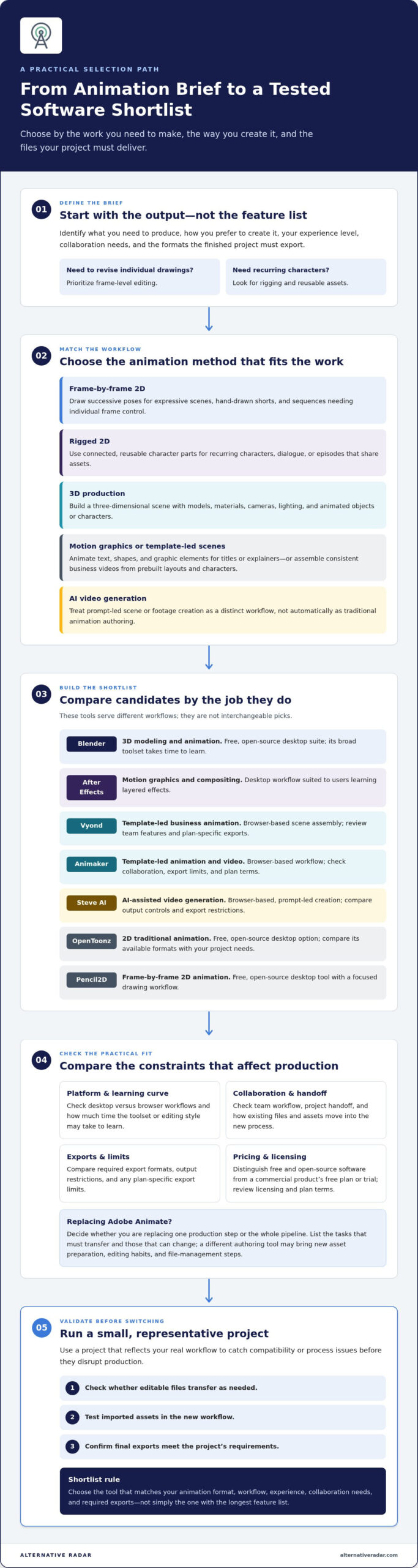
Choose by working backward from the finished animation, then test whether a tool can produce it within your team’s practical limits. This keeps feature lists from distracting you from the requirements that matter.
- Define the output. Specify the animation type, target platform, resolution, aspect ratio, and delivery formats. A short social clip, classroom lesson, and character sequence have different production needs.
- Set your must-haves. List essential controls, such as frame-by-frame drawing, rigging, compositing, or templates. Separate them from convenience features and capabilities you’ll rarely use. Templates can speed up repeatable explainers, but may limit creative control.
- Match the workflow to the user. Solo creators may value accessible tools and manageable setup. Educators may prioritize repeatable lessons and straightforward sharing. Business teams often need consistent output and collaboration, while experienced animators may prefer detailed controls over a faster, more constrained workflow.
- Build a comparable shortlist. Select tools that fit your animation type, operating system, skill level, and budget. Compare current plan terms and licensing alongside features, not as an afterthought.
- Test before deciding. Use the same small project brief, real assets, and delivery requirements in each shortlisted tool. Export a sample and review the result in its intended playback or editing context.
Which features are essential for your animation workflow?
Rank requirements by impact. A must-have is something the project cannot ship without, such as a required export format or the ability to animate a character rig. Editing controls and output resolution may be essential; a specialized effect used once may not be. Decide whether templates support your production style or trade away too much control before making them a priority.
How can you evaluate a shortlist efficiently?
Keep a simple scorecard for each test: setup time, learning friction, output quality, export limits, and how well the tool handles your brief. Note where a workflow feels faster and where it requires workarounds. Recheck current pricing, plan limits, and licensing before committing to a paid setup, since terms can affect the real fit.
Use the results to identify the best animation software alternatives for your needs, rather than selecting a universal winner. Compare animation software options to refine your shortlist by workflow, features, and budget.
Find and compare your best animation software alternative
There’s no universal winner. The strongest fit is the tool that supports your output and production habits without adding unnecessary cost, complexity, or handoff friction. Use these categories to narrow your shortlist, then compare current features, platform support, export formats, and licensing before making a decision.
Which kind of alternative is the strongest fit?
- For 2D animation: Look at tools built for drawing frame by frame or animating reusable character rigs. OpenToonz and Pencil2D are free, open-source examples to consider for drawn workflows. Compare their capabilities and compatibility with your project needs.
- For 3D animation: Consider a 3D suite such as Blender if you need to build and animate scenes, models, or characters. Its broad scope can offer creative control, but may take more time to learn than a focused 2D or template-based tool.
- For motion graphics: A compositing and graphics workflow, such as Adobe After Effects, may suit animated text, effects, and layered visuals better than a dedicated frame-by-frame drawing app.
- For business animation: Template-led tools such as Vyond or Animaker may help teams assemble explainers with less custom asset work. The trade-off can be less control over the look and motion than a build-from-scratch workflow.
These examples are starting points, not fixed rankings. Compare tool-specific capabilities and terms against your requirements before committing.
What should you do before committing?
Run a small trial project using the assets and delivery specifications you expect to use. Check whether the finished export meets your resolution, format, timing, and playback needs. Then review licensing for the software, templates, stock assets, or generated content, along with plan limitations and renewal terms. Simple tools can speed up production, while more advanced controls may provide flexibility at the cost of setup and learning time. Collaboration features can help a team, but matter less to a solo creator.
If animation is one part of a broader creative workflow, our guide to free Photoshop alternatives can help you compare image-editing options too.
Compare software alternatives by workflow, features, pricing, and trade-offs, then shortlist the options that match your project. Some links in software comparisons are affiliate links, which can earn the publisher a commission when users complete a purchase or subscription. Use your requirements and trial results to make the final call.
Choose your next animation tool with confidence
The best animation software alternatives depend on the work you need to produce, not a universal ranking. Start by matching the tool to your format, whether that’s 2D animation, 3D scenes, motion graphics, or template-led video. Then compare how each option fits your skills, team workflow, and delivery requirements.
Before switching, test a representative project with your own assets and review the exported result. Compare file compatibility, licensing, and plan limits alongside the features you’ll use. A small trial can reveal whether a tool’s simplicity, creative control, and collaboration features balance out for your production needs.
Compare free, open-source, and premium options through their features, pricing, and pros and cons to build a shortlist that reflects your priorities. Explore and compare animation software alternatives to find options that fit your workflow.
Frequently Asked Questions
What is the best alternative to Adobe Animate?
The best alternative depends on which part of Adobe Animate’s workflow you need to replace. For hand-drawn 2D work, compare dedicated 2D animation tools such as OpenToonz or Pencil2D. For motion graphics, a compositing-focused tool may be a closer fit; for 3D animation, consider a 3D suite. The best animation software alternatives preserve the functions your projects rely on, so test a representative file and export before switching.
Is there a free animation software alternative to Adobe Animate?
Yes. OpenToonz and Pencil2D are free, open-source 2D animation options. They can help reduce software costs, but their workflows and capabilities differ, so compare them against the kind of animation you create. Before using either for a project, review its current license, operating-system support, import and export formats, and whether your required assets work as expected. Free software doesn’t necessarily mean every included asset has unrestricted use terms.
Which animation software is easiest for beginners?
The easiest option depends on what you want to make. Beginners creating simple drawn animation may find a focused 2D tool such as Pencil2D more approachable than a broad 3D suite. People making business explainers may prefer template-led software, which reduces the need to build every scene from scratch. Try a small project that matches your goal, then compare setup, editing steps, and export requirements before choosing.
Can I open Adobe Animate files in other animation software?
Don’t assume another program can open and preserve an Adobe Animate project as an editable file. Native project formats and rendered exports are different: a video or image sequence may transfer, while layers, symbols, timelines, and effects may not. Keep a backup of the original, then test the formats available in your workflow. Check the imported project’s assets, timing, fonts, and effects before moving production.
What animation software is best for 2D animation?
The best 2D tool depends on whether you draw each frame, animate reusable rigs, or assemble scenes from templates. Pencil2D and OpenToonz are free, open-source choices to compare for 2D workflows, but their controls and project fit differ. Compare the current feature set, supported operating systems, licensing, and export formats with your needs. A short test using your own assets will reveal more than a feature list alone.
Is Blender a good alternative to Adobe Animate?
Blender can be a strong alternative if your goal is 3D modeling and animation, but it isn’t a direct one-to-one replacement for every Adobe Animate workflow. If you rely on 2D drawing or a particular project-file process, compare those needs separately. Blender’s broad toolset may offer more flexibility for 3D work, while also requiring time to learn. Test the specific output you need before switching.
Can free animation software be used for commercial projects?
Often, but review the exact license and terms for the software and every asset used in the project. Open-source software may permit commercial use, but templates, stock audio, fonts, imported artwork, and generated content can have separate restrictions. Review current terms before publishing or delivering client work. Also compare whether a free plan limits exports, adds watermarks, or restricts commercial features, since those limits can affect project delivery.