
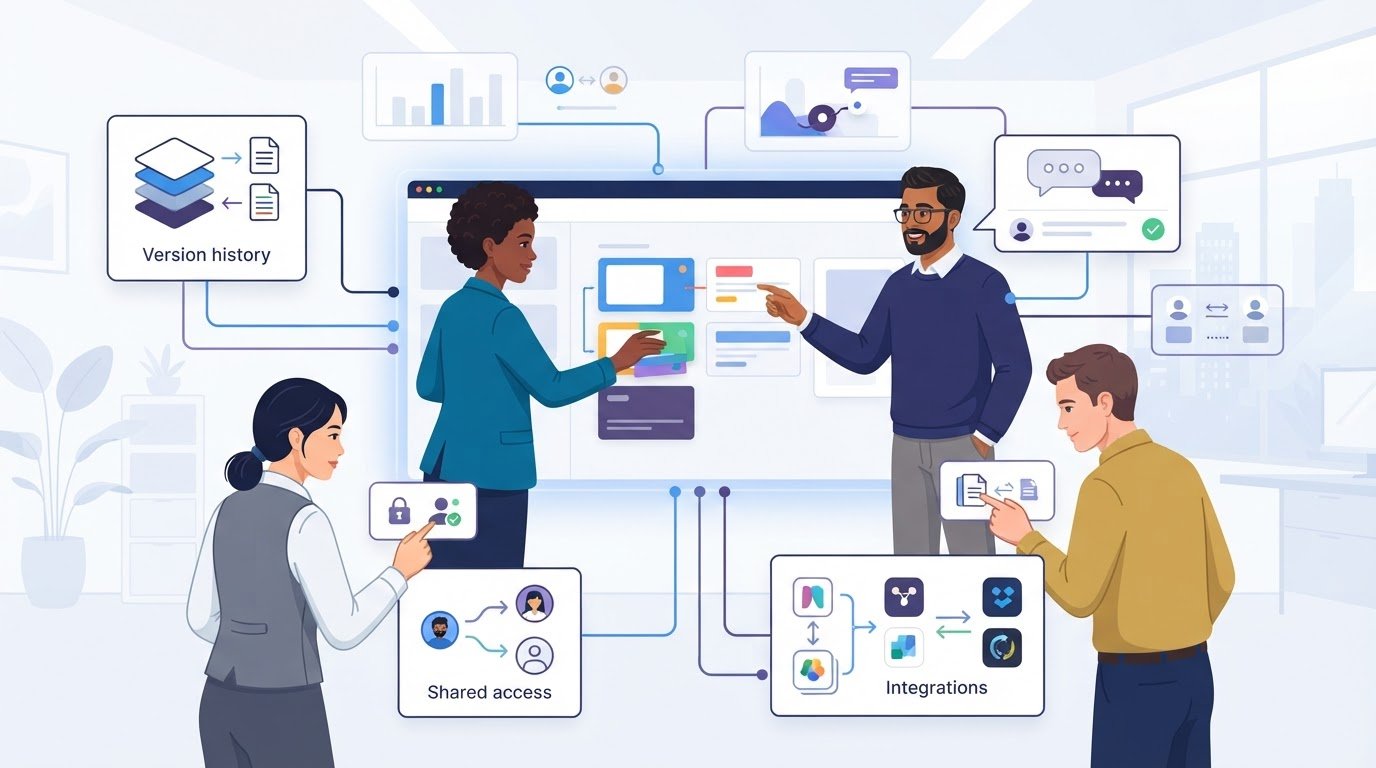
The tool with the strongest live co-editing may still be the wrong choice for your team. A useful presentation software with collaboration features comparison looks beyond simultaneous editing to the full workflow: how teammates review drafts, how guests get access, and how permissions and version history work.
“Collaboration” can mean different things across platforms. Live co-editing and asynchronous feedback solve different problems, and key controls or integrations may depend on the plan. The right fit depends on how your team creates, reviews, shares, and presents, not on a feature list alone.
This guide gives you consistent criteria for comparing collaboration workflows, access controls, version management, integrations, and plan limits. You’ll learn which capabilities to prioritize, what to examine across free, open-source, and premium options, and how to build a practical shortlist. Alternative Radar brings together software comparisons covering features, pricing, pros, and cons, so you can assess each option against the way your team actually works.
Key Takeaways
- Separate slide creation from teamwork tools like review, access control, and version history to identify what your workflow requires.
- Compare presentation software with collaboration features using the same criteria, not feature labels or marketing claims.
- Test a realistic team task and mark essential requirements before weighing free-plan limits against paid capabilities.
- Build a shortlist across free, open-source, and premium options, then compare features, pricing, pros, and cons.
What presentation software with collaboration features should actually help your team do
Presentation software with collaboration features should let a team create and refine a deck together, exchange feedback, and control who can view or change it. That means evaluating more than slide layouts, templates, and animation tools. A presentation program may also support web-based sharing and communication, as outlined in the Presentation program Wikipedia article, but the teamwork workflow varies by tool.
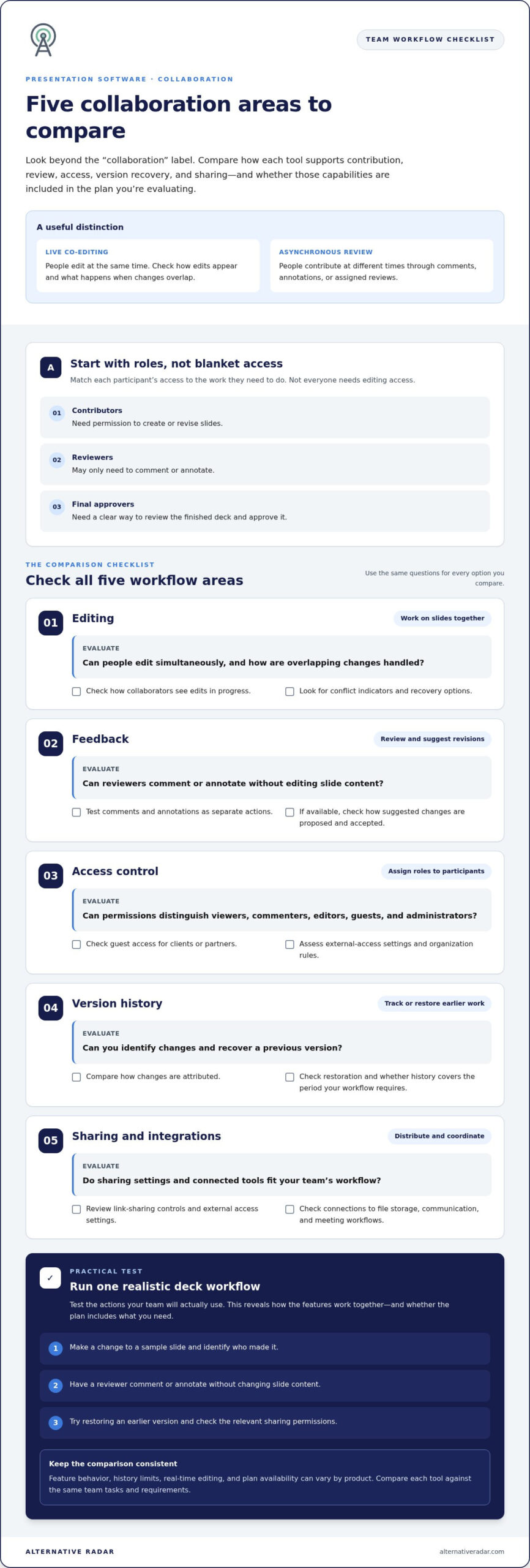
Synchronous collaboration happens live, with people editing at the same time. Asynchronous collaboration happens at different times, through comments, annotations, or assigned reviews. The best fit depends on your team’s routine, not just its size. A small team building a deck together may value quick co-editing. A team gathering feedback from clients may prioritize controlled review access, clear comment threads, and a way to distinguish feedback from approved changes.
Live co-editing versus asynchronous presentation review
Live co-editing suits work that benefits from immediate discussion, such as shaping a sales pitch together before a deadline. Test how collaborators see edits in progress and what happens if two people change the same content. Change attribution, conflict indicators, and recovery options can help the team understand and resolve overlapping edits, though behavior varies by tool.
Asynchronous review is better when contributors work across schedules or reviewers only need to comment. For example, a project lead can share a draft, collect feedback, and address comments before a final approver reviews it. This separates editing from review, so participants do not all need to join the same session.
Which teams benefit most from shared presentation workflows?
Distributed teams can use shared decks to coordinate contributions across locations. Sales groups may need product experts to update content while managers review messaging. Educators can prepare materials with colleagues, while project teams can gather updates from multiple owners. In each case, not everyone needs editing access.
- Contributors need permission to create or revise slides.
- Reviewers may only need to comment or annotate.
- Final approvers need a clear way to review the finished deck and approve it.
Match roles to access levels rather than giving every participant the same controls. A small group with occasional reviews may need straightforward sharing and comments. Larger teams or frequent external reviews may benefit from structured permissions and approval steps. Start by listing who participates and when they need to act. Then identify the features that remove friction without adding unnecessary administration.
Which collaboration features matter most in presentation software?
Compare collaboration across five areas: editing, feedback, access control, versioning, and sharing. Collaboration includes both contribution and review controls: people need ways to change a deck and ways to give input without changing it. The label alone isn’t enough. Look at how each feature works in practice and whether it is included in the plan you are comparing.
| Feature | Team task | Evaluation question |
|---|---|---|
| Editing | Work on slides together | Can people edit simultaneously, and how are overlapping changes handled? |
| Feedback | Review and suggest revisions | Can reviewers comment or annotate without editing slide content? |
| Access control | Assign roles to participants | Can permissions distinguish viewers, commenters, editors, guests, and administrators? |
| Version history | Track or restore earlier work | Can you identify changes and recover a previous version? |
| Sharing and integrations | Distribute decks and coordinate work | Do sharing settings and connected tools fit your team’s workflow? |
Editing, comments, and version history
Simultaneous editing lets multiple people work in a deck at once. Comments let someone discuss a slide without changing it, while annotations can point to specific content. Suggested changes, where available, offer another way to propose edits before they’re accepted. These are separate capabilities, so test the actions your team will use rather than treating them as interchangeable.
Version history can help teams see what changed and return to earlier work if a revision causes problems. Compare how changes are attributed, how restoration works, and whether the history covers the period your workflow requires. For a practical test, make a change to a sample slide, identify who made it, and try restoring an earlier version. History limits and real-time behavior can vary by product and plan.
Sharing, permissions, and integrations
Check whether roles let you give contributors editing rights while limiting reviewers to comments and approvers to viewing. Guest access matters when clients or partners need to review a deck. Assess link-sharing controls, external access settings, and whether administrators can set rules for an organization. Then consider connections to your existing file storage, communication, and meeting workflows. An integration is useful only if it supports a task your team needs to complete.
Use these questions to compare tools consistently. You can also compare presentation software options by features, pricing, pros, and cons.
How to compare presentation software collaboration without overlooking plan limits
A feature list can make two tools look similar even when their limits create very different team workflows. Compare presentation software with collaboration features against the same tasks, access needs, integrations, exports, and plan restrictions. Don’t treat a longer feature list as a higher score. A capability matters only if your team can use it in the right plan and in the way the work requires.
Compare collaboration features against real team tasks
Build your comparison around a typical deck lifecycle: draft slides, collect stakeholder feedback, approve revisions, and deliver the final file. Assess each tool against the same requirements, not its own feature names. For example, record whether reviewers can comment without editing and whether approval is clearly distinct from review. Note which steps are built in and which depend on an integration.
Keep the comparison practical. If your team already collaborates in a file-storage or communication tool, assess whether the presentation software connects to it and what the integration actually enables. A link to another service is not necessarily the same as a built-in workflow.
Collaboration: Can teammates edit together, leave feedback, and track revisions?
Access: Can you assign appropriate roles and manage guest or external access?
Integrations: Does the tool connect to the storage, communication, or meeting workflows your team uses?
Exports: Can you deliver the deck in the formats and methods your workflow requires?
Plan restrictions: Which user, storage, sharing, or collaboration limits apply to each plan?
Check access, security, and plan restrictions
Compare free-plan and paid-plan capabilities separately. Note whether guest access, role controls, link-sharing settings, administrative options, or version history differ by plan. Also consider storage, export, and user limits that could affect the whole team, not just the person who creates the deck. A free option may cover occasional reviews but fall short for a recurring, multi-person workflow.
Assess security and compliance claims by looking at the specific controls and plan details presented for each option. A broad label does not tell you which safeguards are included. Record the pricing, plan names, user limits, and collaboration features alongside the comparison, including when those details were reviewed. This makes it easier to spot differences and revisit information that may have changed.
Finish by comparing overall team fit: the workflow supported, the access model, the integrations required, and the plan limits. A focused shortlist based on those criteria is more useful than a ranking based on feature count alone.
Match collaborative presentation tools to team workflows
Choose a tool by mapping how a presentation moves through your team, not by counting features. Use this sequence: map tasks, identify roles, rank requirements, test workflows, then shortlist. Separate must-haves, such as external review or dependable version recovery, from useful extras, such as advanced administration. This keeps the comparison focused on how your team works.
Start with contributors, reviewers, and approval steps
Map who creates slides, provides feedback, approves content, and distributes the final deck. Note where contributors need to work live and where reviewers can respond later. Then translate each role into access and notification needs: editors may need change access, reviewers may need comment access, and approvers may need a clear way to review the final version. Don’t assume every participant needs the same permissions.
- Small team: A few colleagues build a deck together. Prioritize straightforward editing and comments over complex administration.
- Cross-functional team: Marketing, sales, and subject experts contribute different content. Look for clear ownership, review steps, and a way to track revisions.
- External reviewers: Clients or partners provide feedback. Prioritize controlled guest access and a review process that doesn’t expose editing controls unnecessarily.
These scenarios don’t point to one universal winner. They help you rank what matters for your own workflow. A small group may value speed, while a cross-functional team may need structured handoffs. A team sharing drafts outside the organization may put access controls first.
Run a realistic collaboration test before choosing
Test each shortlisted tool with a representative deck and the people who would actually use it. Have editors revise slides, reviewers leave comments, and an approver inspect the updated version. Try the file formats your team typically receives or delivers. During the test, note whether changes are easy to follow, comments are clear, and access settings match the intended roles.
Record friction points against your must-have list. Did a reviewer need editing rights to leave feedback? Were changes hard to distinguish? Did sharing the final deck require an extra step? Compare these observations across tools and include plan limits in your notes, so the shortlist reflects the workflows your team can use.
Once your workflow and priorities are clear, compare presentation software options by features, pricing, pros, and cons across free, open-source, and premium choices.
Find presentation software with collaboration features that fits your shortlist
A useful shortlist turns your team’s requirements into a focused comparison, not a search for a universal winner. Group options by collaboration workflow, deployment preferences, and budget requirements. For example, separate tools suited to live co-editing from those that fit asynchronous review, then note whether each option is free, open-source, or premium.
Apply the same criteria to every candidate: editing, feedback, permissions, version history, integrations, exports, and plan limits. Pay particular attention to details that could determine whether a tool fits, such as guest access or the number of users included in a plan. User feedback can add context about practical use, but compare it alongside product details rather than treating it as a substitute.
Use a shortlist that reflects your team’s priorities
Keep must-haves separate from preferences. If your team regularly collects comments from external reviewers, controlled guest access may be essential. If people mainly edit a deck together, simultaneous editing could matter more. A feature that sounds useful but doesn’t support a real task shouldn’t outweigh a requirement your team depends on.
Compare like with like across the shortlist, including plan restrictions. Alternative Radar helps readers discover software options and compare features, pricing, pros, and cons across free, open-source, and premium software. Its comparisons offer a consistent starting point for evaluating presentation software with collaboration features, with details organized to help you weigh each option against your team’s needs.
Compare alternatives and take the next step
As you review options, keep comparison information distinct from paid placements. Alternative Radar may earn affiliate referral commissions when readers follow certain software links, and it also offers sponsored software placements. These are different revenue sources. Clear labeling of affiliate links and sponsored placements helps readers understand the context of a recommendation.
Use your shortlist to compare each candidate’s features, plan terms, and user feedback side by side. Pay close attention to details that can change, such as pricing, collaboration availability, and user limits. Then narrow the options to those that meet your must-haves without adding unnecessary complexity.
Explore software comparisons on Alternative Radar to review alternatives and assess them against your team’s collaboration priorities.
Choose a collaboration workflow your team can sustain
The right presentation software with collaboration features supports how your team drafts, reviews, approves, and shares work without forcing everyone into the same process. Compare live editing and asynchronous feedback separately, then assess permissions, version history, integrations, exports, and plan limits against real tasks. Treat must-haves as decision filters, not just features to tally, and pay attention to details that may change across plans.
Your shortlist should reflect the people involved and how decks move through your team. A small group may value simple co-editing, while teams that rely on external reviewers may prioritize comments and controlled access. Compare free, open-source, and premium options using the same criteria to see which trade-offs fit your workflow.
Alternative Radar helps you compare software features, pricing, pros, and cons across these options. Compare software options on Alternative Radar and use your criteria to narrow the field. A clear process can help your team choose with confidence and spend more time creating together.
Frequently Asked Questions
What is presentation software with collaboration features?
Presentation software with collaboration features lets people create and refine slide decks together, share feedback, and control access. Collaboration can include live co-editing, where people edit at the same time, and asynchronous review, where participants comment or suggest changes later. Look beyond slide design tools: comments, role permissions, sharing controls, and version history can shape how well a tool supports your team’s full process.
Can multiple people edit a presentation at the same time?
Yes, some presentation tools support simultaneous editing, but the experience varies by product and plan. Collaborators may be able to see each other’s changes as they work, while features for identifying or resolving overlapping edits can differ. Before relying on live co-editing, test it with a shared deck and multiple editors. Check how changes appear, whether they’re attributed, and what happens if people revise the same slide.
Which presentation software features help teams review slides asynchronously?
Comments, annotations, suggested changes, and review tasks can support asynchronous feedback. They let reviewers respond on their own schedules without joining a live editing session. For example, a subject expert might comment on one slide while a manager reviews the complete deck later. Consider whether feedback can be tied to specific slides or content, whether reviewers can participate without editing, and how the team tracks resolved comments.
How do presentation tools manage comments, permissions, and version history?
Tools may let users comment on slides, assign different access roles, and review or restore earlier versions. The exact controls vary, so use a typical review cycle to compare how they work. Confirm who can view, comment, edit, or manage access, and whether changes are identifiable in version history. Also consider whether guests can participate and whether history or permission features depend on a particular plan.
Is free presentation software enough for team collaboration?
Free presentation software may be enough if your team can complete its usual tasks with the included editing, review, sharing, and access controls. It may be less suitable if your workflow depends on specific guest permissions, administration, storage, export, or version-history capabilities. Compare free-plan limits with your must-haves. A free option is useful only if its limits fit the work.
Can external guests review a shared presentation without editing it?
Some tools let owners share a presentation with guests who can view or comment without editing slide content. Access options vary, so compare whether guests need an account, whether sharing links can be restricted, and whether external access can be managed. Try the reviewer’s workflow before sharing a live deck. Confirm that guests can complete the intended review without receiving broader permissions than they need.
How should a team compare presentation software collaboration features?
Compare tools against the same real tasks: drafting, live editing, asynchronous review, approval, and final delivery. Record how each handles comments, access roles, version history, integrations, exports, and plan limits. Separate must-haves from optional features, and distinguish built-in capabilities from workflows that rely on integrations. Then shortlist the options that fit your team’s roles and review cadence.