Open-source photo editing software lets Windows users edit images without relying on a paid program. Some options are portable, so you can run them without a conventional installation. The right choice depends on the tools you need, especially for color work and more involved edits.
It can be worth looking beyond familiar commercial apps: editing needs vary, and a simpler or more flexible setup may suit your workflow better. This guide explains why open-source editors appeal, compares their editing and color tools, and outlines what to consider when choosing a free portable option for Windows. You’ll get a clearer sense of where these programs fit and which trade-offs matter before you choose.
Key Takeaways
- Choose color tools based on your workflow: photo-library management and detailed image adjustments serve different needs.
- Build an editing process around the tasks you repeat, rather than choosing software by popularity alone.
- Compare layers, brushes, and editing flexibility to find a tool that matches how much control you want.
- For Windows use, distinguish genuinely portable options from programs that require a standard installation.
Color management and image processing
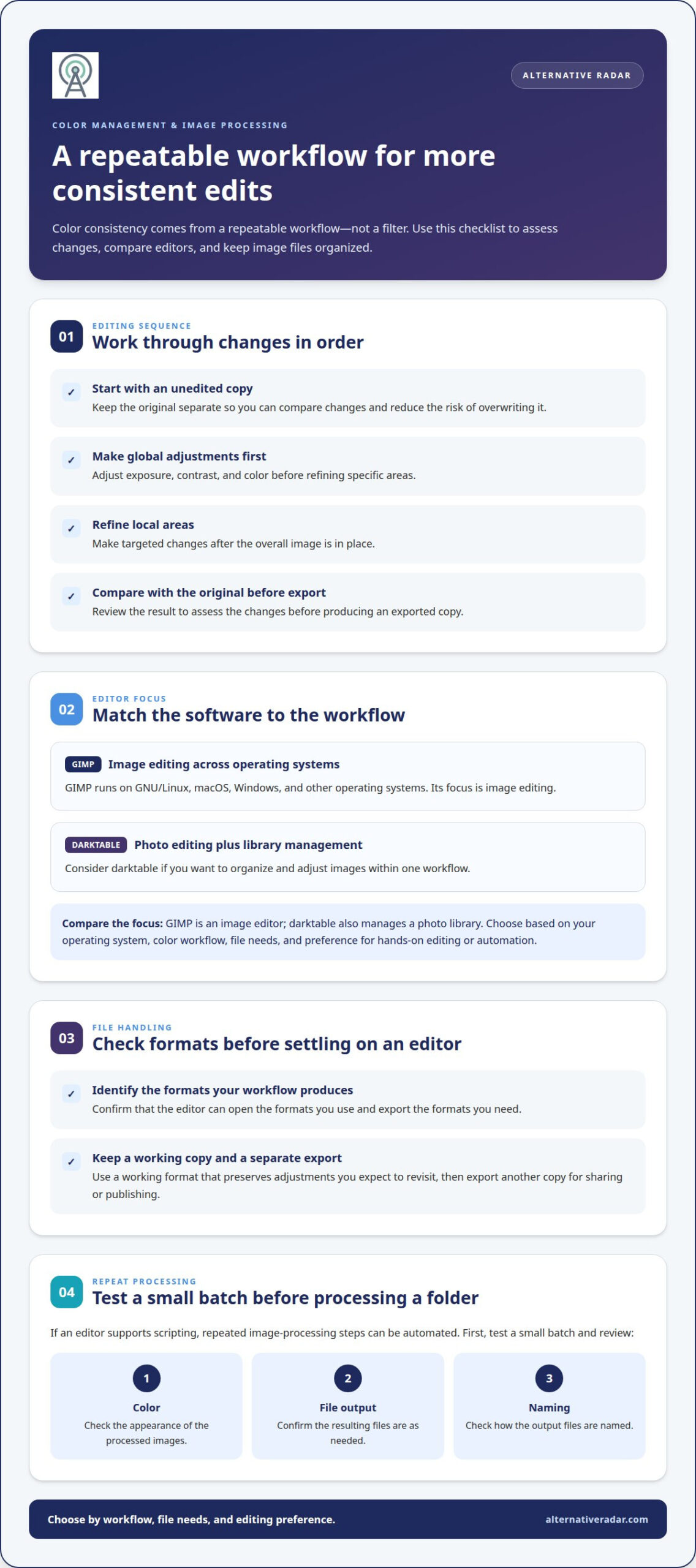
Color consistency comes from a repeatable workflow, not a filter. Open-source photo editing software can help you adjust exposure, contrast, and color, but each editor organizes these controls differently. Start with an unedited copy, make global adjustments, then refine local areas. Compare the result with the original before exporting. This sequence makes changes easier to assess and helps prevent one adjustment from masking another.
GIMP runs on GNU/Linux, macOS, Windows, and other operating systems. That cross-platform support can help photographers use a familiar editor on different computers. darktable combines photo editing with library management, making it a different fit for people who want to organize and adjust images in one workflow. Consider each program’s focus: GIMP is an image editor, while darktable also manages a photo library.
Image format compatibility matters when importing and exporting. Before settling on an editor, identify the formats your camera or workflow produces, then confirm the software can open and export them as needed. Keep a working copy in a format that preserves adjustments you expect to revisit, and export a separate copy for sharing or publishing. This separation reduces the risk of overwriting the original image.
Freemium and premium editors may bundle editing features with a recurring subscription. Open-source tools offer another route, though their interfaces and workflows differ. For repeated image processing, scripting can automate consistent steps when an editor supports it. Test a small batch first: check color, file output, and naming before processing a full folder. Choose based on your operating system, color workflow, file needs, and preference for hands-on editing or automation.
Why Use Open-Source Software for Photo Editing?
Hardware needs depend on the editor, operating system, and image workload. Large files and batch edits demand more memory and processing power than occasional adjustments. Compare the software’s stated requirements with your computer, then test it with a typical image from your camera. This practical trial shows whether opening, editing, and exporting fit your workflow, without relying on generic hardware recommendations.
An open-source photography workflow can combine tools for distinct tasks. Use an editor such as ART for a RAW-focused process, then export finished images for sharing or layout. Keep original files separate from edited copies, and use consistent folder names so projects are easy to revisit. Accessibility also depends on fit: check whether the interface, available language, shortcuts, and documentation work for you. A capable tool is less useful if its controls make routine edits harder.
Open-source software can involve trade-offs. Interfaces and documentation vary, and some editing features may not work non-destructively across every tool. GIMP 3.0 does not support non-destructive editing universally for all tools and effects. For security, download software from its project’s official distribution channel and install updates as they become available. Be cautious with installers from unfamiliar sources, which may not be genuine project builds.
Photo editing can also feed into a desktop publishing workflow. Prepare image files in an editor, export them, then place them in a page-layout application such as Scribus. Keep a high-quality working export for layout and create a separate version for online use. This makes it easier to revise a graphic without rebuilding the entire publication. Compare tools by workflow: a photographer may prioritize RAW adjustments, while a publisher may value predictable exports and a straightforward handoff.
Editing tools, layers, and brushes
An editor’s tools shape how quickly you can make precise corrections. For a portrait, select the subject, then adjust brightness without changing the background. For a landscape, cropping can improve composition before you refine contrast. Compare how each program handles selections, retouching, and adjustments. A clear tool layout can speed up repeated edits, while a crowded interface may slow down simple tasks.
Layers give digital edits a useful structure. Place a title or color effect on a separate layer, then adjust its position or visibility without changing the original image. Masks give you more control by hiding or revealing parts of a layer. For example, a mask can apply a color adjustment to the sky while preserving the foreground. When comparing editors, test whether layers and masks suit your usual edits and whether you can return to earlier steps.
Brushes work well for local changes that need a soft edge. Use a brush with a mask to brighten a face, reduce a distraction, or selectively sharpen details. Brush size, softness, and opacity affect how visible each stroke appears. Start with a low-opacity pass, then build the effect gradually. This helps avoid abrupt transitions, especially around hair, clouds, and other detailed edges.
Also compare how a program handles reversible edits. GIMP 3.0 does not support non-destructive editing universally for all tools and effects. That means some operations may change image pixels directly, while other workflows preserve more flexibility. For an important project, save a working copy before applying edits that may be difficult to revise. Then test a sample image: use a selection, add a layer, paint with a brush, and revisit the result. This quick sequence shows whether the editor’s controls match your preferred level of precision and flexibility.
Free, portable open-source photo editing for Windows
Windows users should distinguish software that supports the operating system from a portable build. The difference affects installation, storage, and how easily an editor can move between computers.
Portable Editing on Windows
A portable editor runs from its own folder rather than requiring a conventional installation. This can suit Windows users who want to keep an editing program on removable storage or separate it from other applications. Portability depends on the specific build, so Windows compatibility alone doesn’t mean a program is portable.
GIMP is available for Windows, but that alone doesn’t mean every package is portable. Compare the available distribution options and consider where settings and supporting files are stored. Portability may be useful on a shared computer; for a regular workstation, a standard installation may be simpler to maintain.
Safe Downloads and Installation
To download a popular open-source editor safely, start at the project’s official distribution page and choose its Windows version. Avoid download buttons on unfamiliar sites, which may lead to installers not published by the project. Follow the project’s installation instructions, then launch the program from its installed location.
If the project offers multiple Windows packages, compare their descriptions before downloading. A portable archive and an installer suit different setups. Keep the downloaded file identifiable, and remove it only after installation or extraction succeeds. This makes it easier to distinguish the original download from the working application.
Choose a format that fits your workflow. A portable package can be convenient when you want the application files together, while a standard installation may suit a dedicated editing computer. Either way, open a sample image and test basic tasks, such as cropping and exporting, before moving a full photo collection. GIMP’s Windows availability makes it a clear example to evaluate, but assess portability separately.
Compare software options by exploring photo-editing recommendations before choosing a Windows setup.
Alternative Radar
Alternative Radar helps readers discover and compare software alternatives when a familiar editor doesn’t match their workflow. For photo editing, use its software recommendations to explore options by features and suitability, then weigh what matters most: Windows compatibility, portable use, color controls, or editing tools. Sponsored software placements and affiliate-linked recommendations are part of how software can appear on the platform, so consider each option against your own requirements rather than choosing by placement alone. This is a useful next step when you want to broaden your shortlist beyond the editors already discussed and compare different software categories. If you have a question about software discovery or recommendations, contact Alternative Radar.
Choose a Tool That Fits Your Next Project
Let your next project guide your software choice. A one-off crop, a batch of travel photographs, and a detailed digital composition call for different levels of control. Before settling on an editor, define the task you expect to do most often. That gives you a practical way to judge whether its workflow suits you, rather than choosing by feature lists alone.
The best open source photo editing software for you is the one you can use consistently for the work ahead. Start with a representative project, then decide whether the experience supports your process. If you want to explore software options and recommendations beyond photo editing, contact Alternative Radar. Use what you’ve learned to make a confident, informed choice for your next project.
Frequently Asked Questions
What are the best open-source photo editing programs for Windows, macOS, and Linux?
GIMP is the clearest cross-platform choice discussed here, with versions for Windows, macOS, and GNU/Linux. darktable is another option if photo-library management matters alongside editing. Rather than relying on a single ranking, match the program to your operating system and workflow. Try a representative image to assess the interface and export process before committing.
Which open-source photo editors support RAW files and non-destructive editing?
RAW compatibility and non-destructive editing are separate features, so assess both for your camera and workflow. Test a camera RAW file in the editor before building a process around it. GIMP 3.0 does not support non-destructive editing universally for all tools and effects, so its editing approach can vary by operation. Keep an untouched original available while evaluating adjustments.
What photo editing features does each popular open-source editor offer?
GIMP provides image-editing tools, including layers, masks, selections, and brushes, which suit compositing and local retouching. darktable combines photo editing with library management, making it relevant when organizing images is part of the same workflow. ART is another program to assess for photography editing. Scribus serves a different role: it can place exported images into a page layout.
Are open-source photo editing programs completely free, including for commercial use?
“Open source” and “free to download” don’t automatically mean every use is permitted. Commercial use depends on the license for the specific program and any separate assets or plugins you use. Read the applicable license terms before using software for paid work. Also distinguish permission to use an editor from the rights attached to the photographs you edit.
Which open-source photo editors are available for Android or iPhone?
Desktop availability doesn’t automatically mean an editor has an Android or iPhone version. For mobile editing, choose an app distributed for your device’s operating system. Before moving a project between phone and computer, consider whether both tools can handle the image formats and edits your workflow requires. Test with a small image to spot export or handoff issues early.
How do GIMP, darktable, RawTherapee, and Krita compare?
GIMP is a cross-platform image editor, while darktable combines editing with photo-library management. ART suits a RAW-focused process.