

The tool with the longest feature list may be the one that slows your brainstorm down. Choosing mind mapping software for brainstorming is less about collecting every possible function and more about how ideas need to develop: in a clear hierarchy, on an open canvas, or from a group discussion into assigned work. Similar feature lists can hide very different workflows and limits.
It’s easy to see why choosing feels difficult. A dedicated mind map can help organize connected ideas, while a collaborative whiteboard gives participants more room to explore freely. Free-plan limits, live collaboration, and export options add another layer to the comparison. The right fit depends on your session, not a tool’s popularity.
This guide compares mind mapping approaches and the features that matter for solo and group brainstorming. You’ll find a practical way to assess collaboration, AI, integrations, plan limits, and ways to move ideas into action, then narrow the options to software that fits your workflow without adding unnecessary complexity.
Key Takeaways
- Use mind mapping software for brainstorming when you need to capture ideas and show how they connect.
- Prioritize features that support your session, from quick idea capture to collaboration and follow-up.
- Compare structured mind maps with flexible whiteboards based on how your group explores and presents ideas.
- Test shortlisted tools with a real brainstorming prompt to see how well each fits your workflow.
- Choose a tool around your needs, whether you brainstorm solo, facilitate a team, or run a mixed-format workshop.
What Is Mind Mapping Software for Brainstorming, and When Does It Help?
Ideas often arrive faster than a group can record them. A running list captures each thought, but it can hide connections, competing themes, and useful follow-up questions. Mind mapping software for brainstorming gives participants a shared visual space to capture ideas as they emerge and show how they relate, without forcing the group to decide too early which ones matter most.
Mind mapping software is a visual workspace that connects a central idea or question to related thoughts through branches. Those branches make relationships visible, so individuals or groups can explore, cluster, and revisit ideas. The format builds on the basic Mind map concept, using digital tools to create and rearrange the map.
A map doesn’t guarantee better ideas or agreement. It makes the thinking process easier to see. Participants can add related points, create sub-branches, and return to an idea without losing its context. That can help when a discussion moves between themes or remote participants need to contribute to the same evolving record.
How a mind map supports divergent thinking
Start with one clear prompt at the center. It gives the group a visible anchor while leaving room for different directions. In a product launch brainstorm, for example, the central question might be “How can we introduce the new product?” Participants could add branches for audiences, messaging, channels, and launch activities, then add ideas beneath each one.
Keep the first pass open. Capture suggestions before sorting them, so early evaluation doesn’t narrow the conversation too quickly. Once the group has explored several paths, it can cluster overlapping ideas, identify gaps, or prioritize options. Separating these stages distinguishes idea generation from decision-making, while the map preserves the connections that informed later choices.
When brainstorming software is useful, and when it is not
A visual map can help when people are working remotely, planning a project with several related questions, or developing ideas alone and wanting to see how they connect. It’s especially useful when a plain list starts to feel crowded or when the group needs to return to earlier branches during a discussion.
For a short session with one straightforward question and few ideas, a shared document or conversation may be enough. Software adds little if participants spend more time learning the interface than discussing the prompt. It also can’t supply a clear question or guide a group through disagreement. Those still depend on preparation and facilitation.
Choose the visual workspace to solve a real session problem. If the challenge is tracking relationships among ideas, a mind map can provide useful structure. If the conversation is simple, keep the setup simple too.
Which Mind Mapping Features Actually Improve a Brainstorming Session?
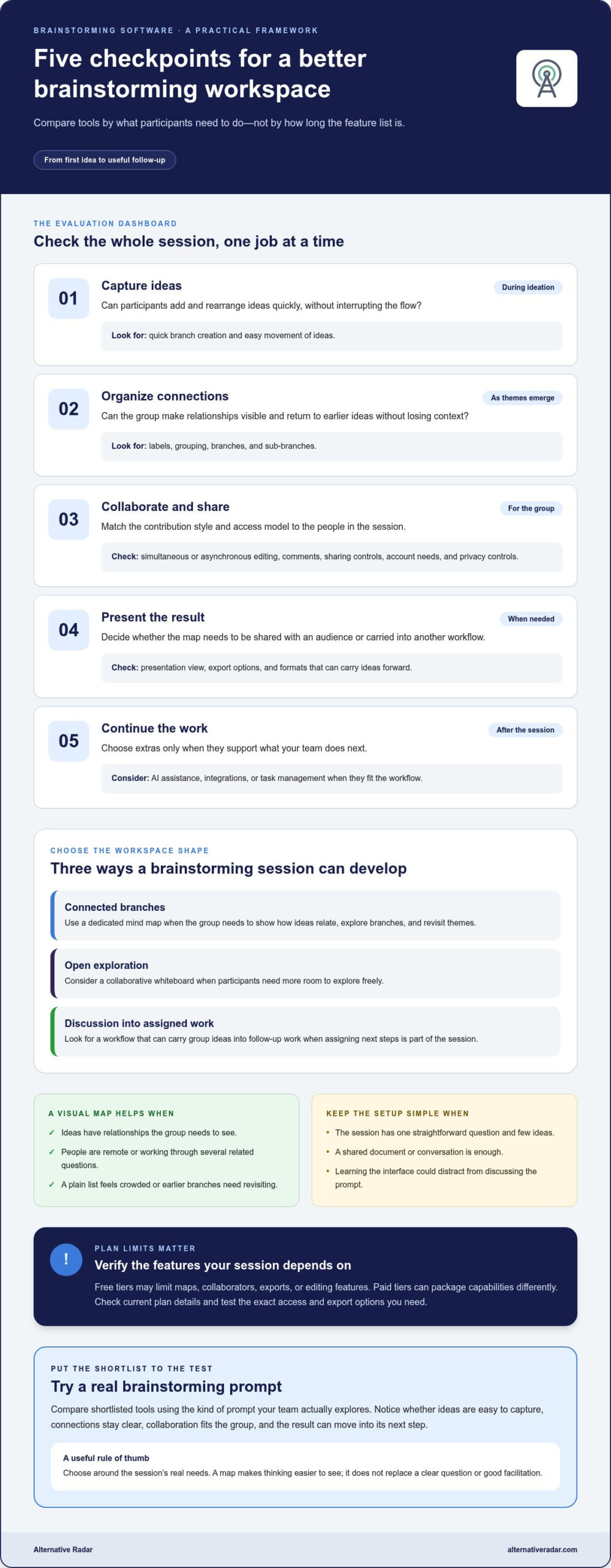
A long feature list doesn’t tell you whether a tool will help your session. Assess it against the work participants need to do: capture ideas, organize them, collaborate, present the results, and continue the work afterward. For mind mapping software for brainstorming, prioritize the capabilities that remove friction from those steps. Treat extras as secondary unless they solve a specific problem.
Mapping, templates, and idea organization
Start with the map itself. Can you add branches quickly, move them without disrupting the structure, label ideas, and group related points? These basics matter more during active ideation than decorative styling. A blank canvas offers flexibility, while a template can provide a useful starting structure for a session with a defined format. Compare both using the kind of prompt your team actually explores.
Then consider what happens to the map afterward. If participants need to present it, export options or a clear presentation view may matter. If the ideas will be reorganized in another workflow, check which formats can carry them forward. Neither capability is essential for every session, so choose based on the audience and next step. This guide to evaluating mind mapping software can provide another reference point, but your own workflow should shape the comparison.
Live collaboration, sharing, and access
For a group session, check whether participants can edit simultaneously or contribute at different times. Comments can preserve questions without crowding the map, while sharing controls help a facilitator decide who can view or change it. Look for features that make contributions easy to follow and help keep the session moving. A collaboration label alone doesn’t guarantee a smooth workshop.
Workplace use adds access requirements. Consider whether participants need individual accounts, how links are shared, and what privacy controls are available for maps containing internal ideas. Make sure the access model fits your organization’s policies before using the tool with sensitive material.
Check feature availability by plan. Free tiers may limit maps, collaborators, exports, or editing features, and paid tiers can package capabilities differently. Before choosing, verify current plan details and test the exact access and export options your session requires. AI assistance, integrations, and task management can be useful extras, but only if they support your workflow.
Use this compact checklist to compare your shortlist:
- Capture: Can you add and rearrange ideas quickly?
- Organize: Can you label, group, and revisit branches?
- Collaborate: Do live or asynchronous contributions suit the group?
- Present: Can you share or export the map in a useful format?
- Continue: Can ideas move into your next step without extra manual work?
- Access: Do plan limits, accounts, and privacy controls fit the session?
Compare options against this checklist, then browse software comparisons to narrow choices by features, plan limits, and trade-offs.
Dedicated Mind Mapping Tool or Collaborative Whiteboard: Which Fits?
The choice depends on whether your session needs a map first or a flexible space for several activities. A dedicated mind mapping tool keeps ideas in a visible hierarchy. A collaborative whiteboard gives participants more room to combine formats. Compare the two by the work you need to do, not by the number of tools or features on offer.
| Decision factor | Dedicated mind mapping tool | Collaborative whiteboard |
|---|---|---|
| Structure | Central topic with connected, hierarchical branches | Open canvas where content can be arranged freely |
| Flexibility | Focused on mapping and organizing related ideas | Can accommodate varied visual formats and activities |
| Group work | Useful when participants are building or refining one map | Useful when a workshop moves between activities on a shared canvas |
| Output | A structured idea map to revisit or share | A broader workshop canvas that may hold several kinds of output |
When a dedicated mind map is the better fit
Choose a focused mapping tool when the group has one central question and expects to develop related ideas into a clear hierarchy. It suits sessions where participants need to add branches, compare subtopics, and leave with a reusable idea map. If consistent structure matters more than space for unrelated materials, a dedicated tool can keep attention on the map instead of a wider workspace.
This approach can also help when you’ll return to the map later and want its relationships to remain easy to scan. You trade some freeform flexibility for a defined structure.
When a flexible visual workspace is the better fit
Use a whiteboard-style workspace for a workshop that combines activities, such as collecting sticky notes, drawing a process, voting on options, and planning next steps. Keeping those materials together can help a facilitator move the group through distinct stages without shifting between separate workspaces. Miro is an example of a collaborative visual workspace; Canva is a broader visual product, not a dedicated mind mapping category.
The trade-off is setup and navigation. An open canvas can support varied formats, but participants may need more guidance to keep the session organized. For another perspective on software recommendations and workflows, see this mind mapping software guide.
Use this rule of thumb: choose a focused tool if the map itself is the main deliverable; choose a whiteboard if mapping is one activity among several. Before committing, test how the shortlisted option handles your expected output and group workflow. The best mind mapping software for brainstorming is the one that supports the session without adding unnecessary steps.
How to Evaluate Mind Mapping Software Using a Real Brainstorming Workflow
A polished demo can make almost any tool look simple. A real prompt reveals whether it supports the way you think, collaborate, and use ideas afterward. Workflow fit matters more than feature volume. Test each shortlisted option with the same exercise so you can compare the experience rather than relying on a feature checklist alone.
Test the tool with a realistic session
Use a question your team genuinely needs to explore, such as “How could we make customer onboarding easier?” Then follow these steps:
1. Define the session. Decide who will contribute, whether the work is solo or collaborative, and what you need to do with the map afterward. This makes your evaluation criteria concrete.
2. Build a small but realistic map. Put the prompt at the center, add branches such as “first-use guidance,” “support,” and “setup,” then add a few notes beneath each. Try changing a branch or moving an idea. Notice whether the structure remains clear and whether you can capture thoughts without interrupting your flow.
3. Try the intended collaboration style. If you expect group use, invite a collaborator to add ideas, respond to a note, or reorganize a branch. For asynchronous work, leave the map and return to it later. Check whether it’s clear what changed and how participants can contribute.
4. Review the resulting map. Step back and scan it as if you were sharing it with someone who missed the session. Can they follow the main themes and find the relevant details? A map that becomes hard to read as it grows may not suit longer or more complex brainstorms.
Check usability, limits, and the next step
Now test the parts that a demo often skips. Note any friction in onboarding, navigation, editing, or collaboration. A feature that exists but is difficult to find may slow down a live session. Compare what you need with what the tool makes easy, not just what its feature list says it can do.
Check whether the map can be shared with the right people and exported in a format that supports your next step. Review account requirements and plan limits for the number of maps, participants, or features your workflow depends on. Availability can vary by tier, so verify current details. Compare pricing and terms with each software provider’s current information, especially before choosing a paid plan.
Record a brief scorecard for each candidate: ease of capture, map readability, collaboration, access, and usefulness of the output. Add a note about any limitation that could disrupt a real session. This gives you a practical basis for comparing mind mapping software for brainstorming, even when tools package features differently.
If a candidate doesn’t fit, use software alternative comparisons to explore other options and weigh their features, plans, pros, and cons.
Build a Shortlist of Mind Mapping Software That Fits Your Needs
There’s no universal winner. Solo idea development, a facilitated team session, and a workshop that mixes maps with other activities place different demands on software. Turn your session requirements into a short, practical shortlist, then compare each option against the same real prompt. That reveals fit more clearly than brand recognition or a long feature list.
Turn session requirements into a focused shortlist
Rank what matters most before you compare tools: map structure, collaboration, sharing, and what you need to do with the output. Mark essential requirements separately from optional ones. For example, solo ideation may call for a simple way to capture and organize thoughts, while a facilitator may prioritize participant access and clear group editing. A mixed-format workshop may need a canvas that holds more than one activity.
Keep the shortlist manageable and use the same prompt in each candidate, such as planning a project kickoff. Try adding ideas, organizing them, and reviewing the finished map. If open-source software is a requirement, include licensing and self-hosting needs in your criteria rather than treating “free” as the same thing as open source.
Compare options transparently before choosing
Match each tool’s strengths to the session profile, then check its trade-offs and plan limits. For example, MindMeister’s Basic plan allows up to three mind maps, which may suit occasional trials but limit ongoing use. Coggle’s free plan includes three private diagrams and unlimited public diagrams, so consider privacy as well as capacity. Miro’s free plan allows up to three editable boards, while Mural’s free plan is limited to three murals. Ayoa’s free plan allows 10 mind maps, but whiteboards and task boards are view-only and AI features aren’t included. These limits can affect a shortlist even when the core format looks right.
These examples aren’t a universal ranking. A solo user may value a straightforward map and a workable free allowance; a facilitated team may need reliable shared editing; a workshop lead may prefer flexible formats despite extra setup. Compare current features, pricing, and terms with each provider’s information before deciding, since plan details can change.
Separate editorial comparisons from provider claims. Look at how features, advantages, drawbacks, and plan restrictions are described, and note when a link is an affiliate link. Some links may earn Alternative Radar a commission if you make a purchase, at no additional cost to you. That relationship should be clear, while your decision should still rest on your requirements and the trade-offs that matter to your workflow.
Use the resulting shortlist to find software options for your brainstorming workflow, then choose the one that fits how you’ll actually capture, share, and use ideas.
Turn Your Shortlist Into a Confident Choice
Your next step is to move from browsing to a small, practical comparison. Pick the options that match how you brainstorm, then decide which one makes it easiest to capture ideas and carry them into your next task. The best mind mapping software for brainstorming is the one that fits the session you actually run, not the one with the most features.
Alternative Radar helps you compare software features, pricing, pros, and cons, with options across free, open-source, and premium categories. Use those comparisons to focus on meaningful trade-offs, then review current provider information before making a decision. Some links may earn Alternative Radar a commission, but your selection criteria should remain grounded in your needs.
Compare software options for your brainstorming workflow and narrow your shortlist around the way you work. A clear fit can make your next session easier to start and simpler to build on.
Frequently Asked Questions
Is mind mapping software useful for brainstorming?
Yes, especially when a prompt could lead in several directions and you want to keep those lines of thought visible. For example, a solo founder exploring customer retention could map possible causes, questions to investigate, and experiments to consider. The map can also reveal areas that need more research. It won’t judge which ideas are feasible, so treat it as a way to develop and inspect possibilities, not as a decision-maker.
Can I use mind mapping software for team brainstorming?
Yes. Team members can contribute to a shared map, which is useful when people work remotely or need to add ideas at different times. Before the session, agree on who will capture, group, and review contributions. This helps prevent a map that grows without direction. For a hybrid meeting, make sure remote participants can access and edit the workspace as easily as people in the room.
Is free mind mapping software enough for brainstorming?
It can be enough for occasional or individual sessions, particularly if the free tier allows the number of maps and participants you need. Test the limits that could interrupt your work: private map access, collaboration, storage, and exports. A plan may be suitable for trying a tool but less practical for recurring workshops. Compare the current free-plan restrictions with your actual workflow before relying on it.
What is the difference between mind mapping software and a whiteboard?
Mind mapping software is designed around connected ideas, while a whiteboard-style tool gives you a more open workspace. If you’re outlining causes and effects, a structured map can keep relationships clear. If your session also uses sketches, diagrams, or voting, a whiteboard may keep those materials together. The distinction is about the work you need to do, not simply whether a tool can display branches.
Can mind mapping software work offline?
Some tools may support offline work, while others depend on an internet connection for editing or collaboration. Check the provider’s current documentation for offline access, supported devices, and what happens to changes made without a connection. If you need to brainstorm while travelling, test this before the session. Also confirm how offline edits sync later, especially if collaborators may update the same map in the meantime.
Can I export a mind map to share it with people who do not use the same software?
Often, but export formats and features vary by tool and plan. A PDF or image can be easy to view, while an editable format may let recipients continue working on the map in another application. Consider whether readers need to inspect the structure, add comments, or make changes. Test an export before sharing important work, since formatting and editability may differ from the original map.