

Self-hosting gives a team more control over where its password vault runs, but it does not make the vault secure by itself. An open-source self-hosted password manager can suit a team that can manage updates, restrict access, and plan for recovery. The key question is whether your team is ready to take responsibility for that security work.
It’s reasonable to want shared access while keeping visibility into where credentials are stored and who can use them. The right setup balances that control with practical safeguards, including clear permissions and reliable access across team members’ devices.
This guide compares self-hosting options, explains team access controls, and outlines what to consider when choosing client apps. It also covers the security responsibilities involved, so you can judge whether self-hosting fits your team’s needs and capacity.
Key Takeaways
- Choose a deployment model that matches your team’s control needs and capacity to maintain the server.
- Set access permissions around who needs each credential, and plan how to remove access when roles change.
- Compare client app compatibility across the devices your team uses before settling on a platform.
- Weigh control over storage against ongoing security work, including updates, restricted access and recovery planning.
Open-source and self-hosted deployment options
A self-hosted password manager gives your team control over where its vault runs, while making the team responsible for operating it. Compare the code, deployment model, maintenance requirements, and recovery plan before choosing.
Open-Source Code and Security Audits
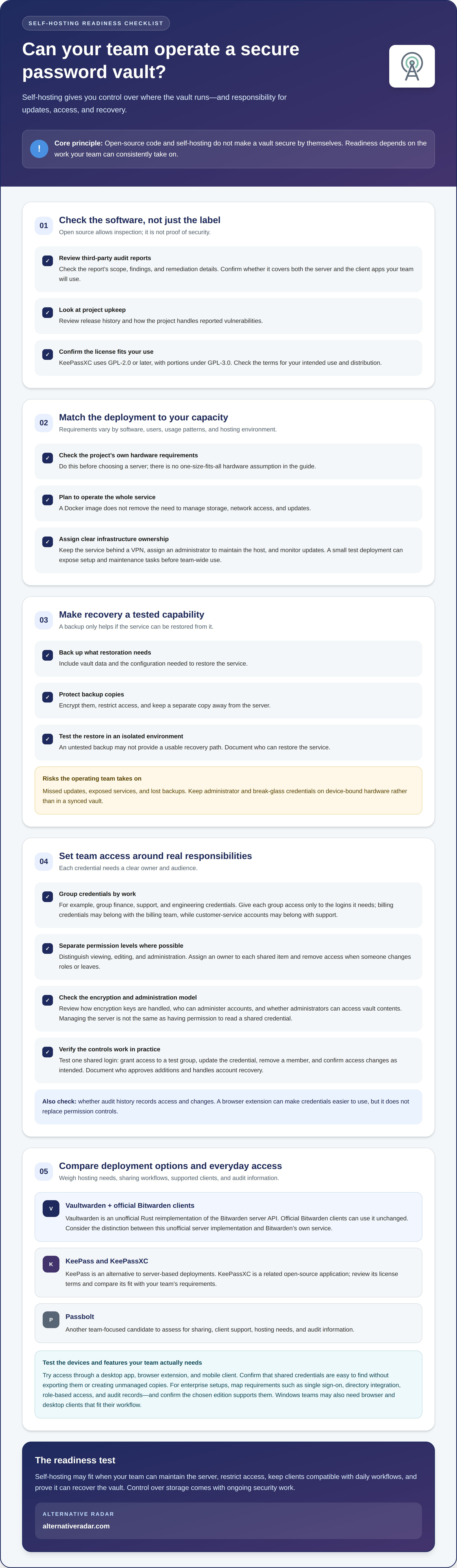
Open-source code lets reviewers inspect how an application handles credentials, but public source code alone does not prove that the software is secure. Look for third-party audit reports and review their scope, findings, and remediation details. Check whether a report covers the server and the client apps your team will use. Also review the project’s release history and its process for handling reported vulnerabilities.
License terms matter too: KeePassXC uses GPL-2.0 or later, with portions under GPL-3.0. Confirm that the license fits your intended use and distribution.
Deployment Requirements and Server Hardware
Hardware requirements depend on the software, number of users, usage patterns, and hosting environment. Review the project’s own requirements before choosing a server. A Docker image does not remove the need to manage storage, network access, and updates. A small test deployment can help reveal setup and maintenance tasks before team-wide use.
Keep the service behind a VPN to limit access to its network entry point. Assign an administrator to maintain the host and monitor updates.
Backups, Restores, and Self-Hosting Risks
Back up the vault data and the configuration needed to restore the service. Encrypt backup copies, restrict access to them, and store a separate copy away from the server. Then test a restore in an isolated environment. An untested backup may not provide a usable recovery path.
Self-hosting makes the operating team responsible for risks such as missed updates, exposed services, and lost backups. Keep administrator and break-glass credentials on device-bound hardware rather than in a synced vault. Limit server access and document who can restore the service.
Comparing Vaultwarden, Bitwarden, KeePass, and Passbolt
Vaultwarden is an unofficial Rust reimplementation of the Bitwarden server API, and official Bitwarden clients can use it unchanged. This pairing may suit teams seeking familiar clients with a self-hosted server, but the unofficial implementation is an important distinction to consider.
KeePass is an alternative to server-based deployments. KeePassXC is a related open-source application with its own license terms, and Passbolt is another team-focused candidate to evaluate. Compare hosting needs, sharing workflows, supported clients, and audit information against your team’s requirements.
Team credential sharing and access controls
Team sharing works best when every credential has a clear owner and audience. Set permissions according to job needs, then review them whenever responsibilities change.
Sharing Permissions and Access Controls
Start by sorting shared credentials into groups, such as finance, support, and engineering. Give each group access only to the logins it needs. For example, the billing team may need payment-platform credentials, while the support team needs customer-service accounts. This limits unnecessary exposure across the organization.
Separate viewing, editing, and administration wherever the software allows. Assign an owner to each shared item, and remove access when someone changes roles or leaves. Check whether the audit history records access and changes. A browser extension can make credentials easier to use, but it does not replace permission controls.
Encrypted Sharing and Enterprise Capabilities
Encrypted sharing protects credentials as they move between authorized team members, but the encryption model matters. Review how the application handles encryption keys, who can administer accounts, and whether administrators can access vault contents. These details distinguish managing the server from having permission to read a shared credential.
For an enterprise setup, map the required capabilities before deployment. These might include single sign-on, directory integration, role-based access, and audit records. Confirm that the chosen edition supports each required feature. A Windows team may also need browser and desktop clients that fit its existing workflow.
Test one shared login before moving an entire team. Grant access to a test group, update the credential, then remove a member and confirm that access changes as intended. Document who approves additions and handles account recovery. This simple workflow can reveal unclear ownership before sensitive credentials depend on it.
Compare integration needs with the hosting model: a container deployment still requires clear account and permission practices. For a wider software shortlist, software comparison research can help organize options around team requirements.
Cross-platform access and client apps
Client apps determine how staff access credentials across desktop and mobile devices. Compare supported platforms and sign-in workflows before connecting your team’s daily tools to its password vault.
Vaultwarden is an unofficial Rust reimplementation of the Bitwarden server API, and official Bitwarden clients can use it unchanged. This may provide familiar apps alongside a self-hosted server, but the server implementation is distinct from Bitwarden’s own service. Passbolt is another option to assess when comparing team-focused access and workflows.
Test access on the devices employees actually use. For example, sign in through a desktop app, a browser extension, and a mobile client, then confirm that each supports the team’s intended workflow. Check whether users can find shared credentials without exporting them or creating unmanaged copies. App availability alone does not show whether access rules work consistently across devices.
Hosting the vault on your infrastructure gives your organization control over its server environment. It does not automatically control every endpoint where a credential may appear. Use permissions to limit which users can retrieve each item, and remove access when someone changes roles. Review browser and mobile use as well as desktop access, especially for sensitive accounts.
Privileged access needs tighter handling than routine team logins. Keep administrator credentials separate from general shared items, restrict who can use them, and document how access is restored. For example, do not place a server administrator password in a vault accessible to every employee. Device-bound hardware can provide a separate place for administrator and break-glass credentials.
Before rollout, test one account through each required client. Confirm that encrypted data syncs as expected, permissions remain appropriate, and a departing user loses access. This practical check can reveal gaps between the server setup and the apps people rely on every day.
Reasons to self-host a password manager
Self-hosting can give an organization more control over where credential data resides. The service can run on the organization’s own server, on-premises within its network and behind its firewalls. This model can support data sovereignty goals, but it also makes the organization responsible for operating the service. Control over hosting is useful only when the team can maintain the infrastructure and protect access.
There’s also a practical security case for managing credentials well. More than 2,300 data breaches were reported in 2024, and weak or reused passwords can expose accounts. An open-source password manager lets teams inspect its source, while independent audits offer another way to assess security work. Neither open code nor an audit replaces updates, restricted permissions and a clear recovery process.
Costs depend on the server or hosting arrangement, storage, backup setup, and staff time for maintenance. Updates, troubleshooting, and recovery planning also affect the workload. A small organization using existing infrastructure may face different costs from an enterprise running dedicated systems. Compare these ongoing responsibilities with the value of controlling deployment, rather than judging the choice by software licensing alone.
Self-hosting fits best when a team has people assigned to maintain the service and can keep updates current. It may be a poor fit when nobody owns patching, backups or access reviews. Before adopting it, name an administrator, document recovery steps and decide how the team will review security audits. Use password manager comparisons to assess options against your hosting and maintenance needs.
Alternative Radar
Alternative Radar helps you compare software options when weighing self-hosting against other approaches. Its recommendations bring together product details, pricing information, and pros and cons, helping you assess fit against your team’s hosting capacity, access needs, and security priorities.
Use these comparisons to narrow your shortlist, then focus on the trade-offs that matter: who maintains updates, which client apps your team needs, and how access controls work. Alternative Radar also features software through sponsored placements and affiliate-linked recommendations, offering additional ways to discover options.
If your team is still deciding which direction to take, compare alternatives before committing to a deployment model. Explore Alternative Radar’s software comparisons to discover and assess options.
Choose a setup your team can sustain
The right password system is one your team can operate consistently, not simply the one that offers the most control. Before deciding, consider who will own maintenance and whether the tools fit your team’s day-to-day work. A self-hosted password manager makes sense when its operational responsibilities match your organization’s capacity and priorities.
Before making a final software decision, define your must-haves: deployment model, access needs, supported apps, and the effort required to maintain the service. Alternative Radar helps readers discover and compare software through affiliate-linked recommendations, sponsored software placements, and programmatic display advertising. Use these options to build a considered shortlist, then focus on the solution that best fits your team.
If you’d like to discuss software discovery or placements, Contact Alternative Radar. Take the next step with a clear view of what your team needs and can support.
Frequently Asked Questions
Is an open source password manager for teams safe?
A self-hosted password manager can be safe when the software and its operation are managed carefully. An open-source option lets reviewers inspect the code, but that alone does not establish security. For your team, consider the project’s audit findings, how it handles vulnerabilities, and whether your organization can maintain the server. Also assess how staff access credentials and what happens if an account or device is compromised.
What is a self-hosted password manager?
It’s password management software your organization runs on infrastructure it controls, rather than relying entirely on a vendor-hosted service. Your team manages the hosting environment and its operation, while users access password records through compatible apps. This model can suit organizations with specific data-location needs, provided they can assign responsibility for keeping the service available and maintained.
What are the best self-hosted password managers in 2026?
There is no single best choice for every team. Options discussed here include Bitwarden with Vaultwarden, KeePassXC, and Passbolt. Vaultwarden is an unofficial Rust reimplementation of the Bitwarden server API, compatible with official Bitwarden clients. Compare each candidate’s deployment approach, client support, sharing workflow, license, and audit information. The best fit depends on your team’s technical capacity and access requirements.
How do self-hosted password managers handle encryption, sync, and sharing?
Each self-hosted password manager handles these functions according to its own design, so review its documentation before deployment. Look at how encryption keys are managed, what data the server handles, how changes sync between clients, and how shared records are granted or revoked. For example, test a shared credential with a small team, then remove a user and confirm that access changes as expected.
Can you use self-hosted password managers on iPhone, Android, and browser extensions?
Yes, if the chosen manager supports compatible mobile apps and browser extensions. Support varies by product and server setup. Vaultwarden uses the Bitwarden server API, and official Bitwarden clients can connect to it unchanged. Before rollout, test the iPhone, Android, and browser combinations your team uses, including sign-in, syncing, and access to shared records.
How do you install and configure a self-hosted password manager with Docker?
Review the selected project’s requirements before deployment. A Docker image does not remove the need to manage storage, network access, and updates. Keep the service behind a VPN, assign an administrator to maintain the host, and test a small deployment first.