The best GIMP alternative might not be a more powerful editor. It might be a tool built for the work you actually do. The best gimp alternatives range from focused illustration apps to browser-based editors and premium photo software, so the right fit depends on your workflow, not a universal ranking.
GIMP is free and capable, but its interface can feel complex, and specialized tasks may be easier in dedicated tools. Switching also raises practical questions: will the editor handle your files, fit your habits, and match your preferred licensing model? This guide compares free, open-source, browser-based, and paid options so you can weigh those trade-offs before changing your setup.
You’ll find editors suited to photo retouching, digital painting, and quick image adjustments, with clear distinctions between their workflows and access models. We’ll also look at where tools such as Krita, Photopea, Photoshop, and Affinity fit, so you can build a shortlist around your platform and priorities rather than pick by popularity alone.
Key Takeaways
- Choose an editor based on whether you need pixel editing, digital painting, RAW development, or browser-based adjustments.
- The best gimp alternatives may complement GIMP rather than replace it, especially when a specialized tool fits one part of your workflow better.
- Compare each editor’s task fit, platform support, access model, strengths, and limitations before narrowing your shortlist.
- Test representative projects and check file compatibility before moving your everyday editing work to a new tool.
- Keep GIMP in your toolkit if it still fits your needs; switch only where another workflow offers a practical advantage.
Why look for a GIMP alternative in 2026? Start with the workflow
GIMP remains a capable free, open-source editor for photo editing and general image manipulation. Looking at alternatives doesn’t mean it’s obsolete. It means your editing tasks, preferred methods, or daily workflow may be better served by a different tool. The GIMP Wikipedia page provides background on the editor’s history, features, and uses, but your own repeated tasks are a more useful starting point for deciding whether to switch.
Pay attention to where friction occurs. Do you repeatedly lose time finding a command, struggle with a specific editing step, or prefer a different way to make and revise changes? One frustrating session isn’t enough to judge an editor. A mismatch is more likely if the same obstacle interrupts routine projects even after you’ve learned the relevant tools.
There are two practical outcomes: replace GIMP if it consistently slows down your main work, or add another editor for a task it handles more naturally. You might keep GIMP for familiar image manipulation while using a specialized application for illustration or RAW development. Switching everything at once can create unnecessary disruption, especially if existing projects rely on familiar file formats, layers, or habits.
When does switching from GIMP make sense?
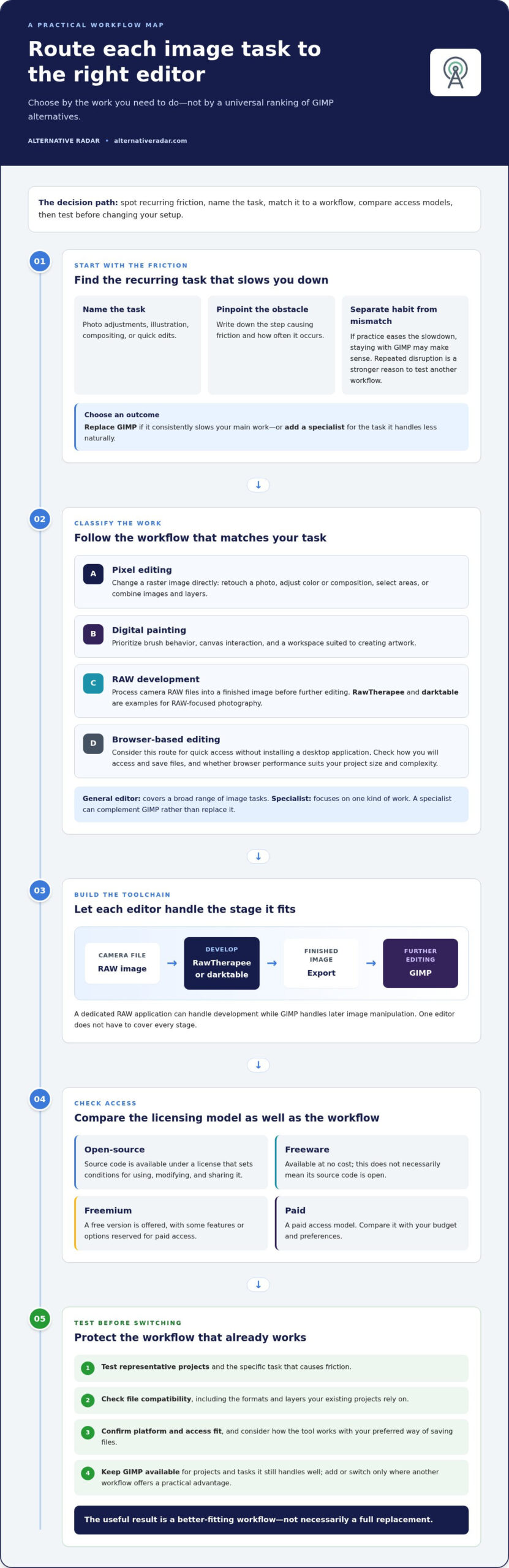
Look for a recurring problem, not a vague feeling that another editor must be better. Write down the task, the step that causes friction, and how often it happens. Then distinguish a persistent workflow mismatch from the temporary discomfort of learning a new interface. If practice reduces the slowdown, staying with GIMP may make sense. If the same step keeps obstructing important work, test an alternative on that task while keeping GIMP available for projects it still handles well.
Which image-editing task are you trying to improve?
Name the task before comparing tools: photo adjustments, digital illustration, compositing, or quick edits. Each puts different demands on an editor, so a popularity ranking may lead you toward a poor fit. For example, an illustrator may prioritize a painting workflow, while someone making occasional crops and adjustments may value speed and convenience. The software alternatives decision guide offers a broader way to evaluate options by practical needs.
Use your task as a filter, then consider your platform, preferred access model, and how much of your current workflow you want to preserve. That makes the search for the best gimp alternatives more focused and gives you a useful basis for testing candidates.
No single editor suits every GIMP user because photo work, illustration, compositing, and quick adjustments demand different workflows and priorities.
Match GIMP alternatives to your image-editing workflow
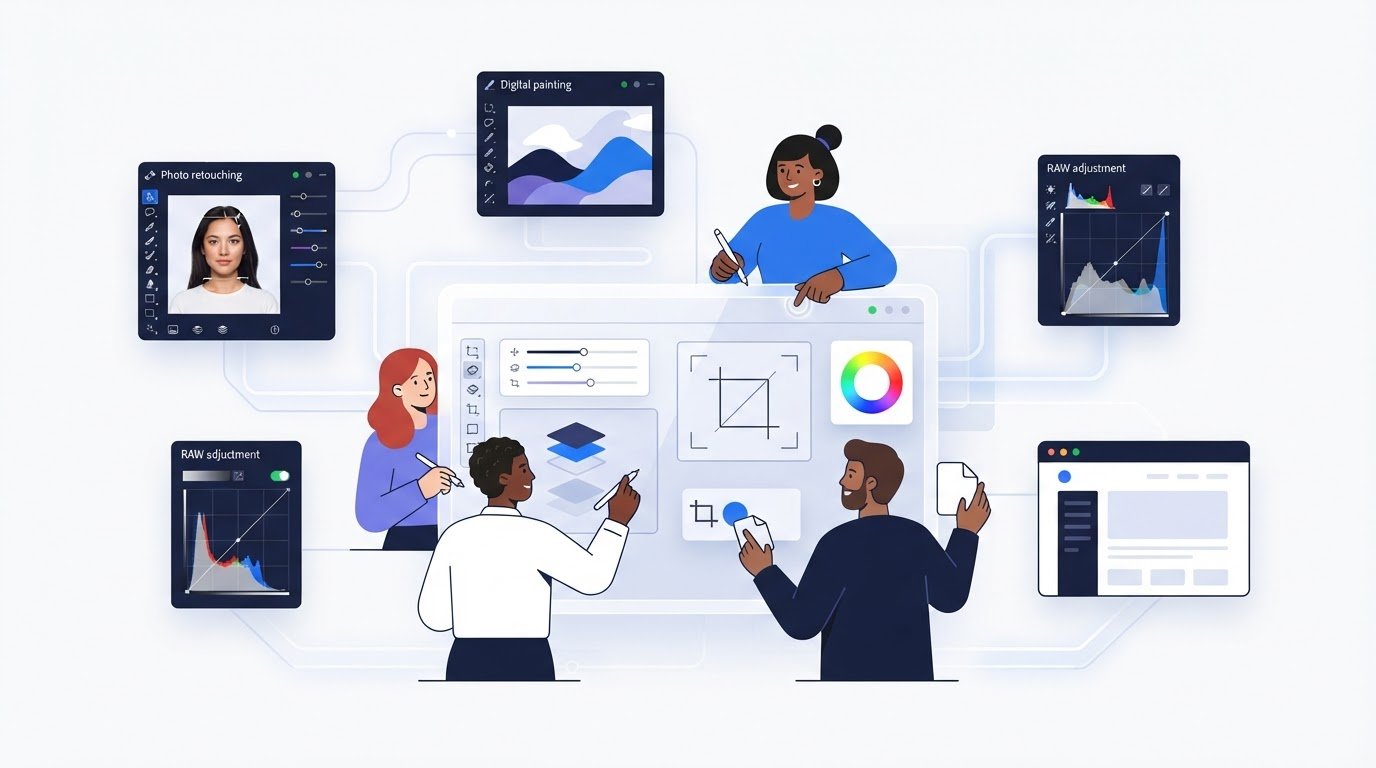
Start with the kind of work you need to do, because “image editing” covers several different workflows. Pixel editing changes a raster image directly, such as retouching a photo or compositing layers. Digital painting centers on drawing with brushes and building artwork on a canvas. RAW development processes camera files before they become finished images. Browser-based editing prioritizes quick access without installing a desktop application.
A general image editor handles a broad range of image tasks; a specialized workflow tool focuses on doing one kind of work well. That focus can make a specialist a useful partner to GIMP, not necessarily its replacement. Choose based on the task you want to improve, then check how the tool fits alongside your existing projects.
Choose between photo editing and RAW development
A rendered image, such as a JPEG, has already been processed by a camera or another application. You can adjust its pixels, color, and composition in an image editor. A camera RAW file, by contrast, contains image data intended for development, so photographers often use a dedicated application to make initial adjustments and export a finished image for further editing.
RawTherapee and darktable are examples to consider for RAW-focused photography workflows. They can fit into a toolchain where a RAW application handles development and GIMP handles later image manipulation. That division can be more practical than expecting one editor to cover every stage. Compare how each application handles your camera files and preferred export process before building it into your routine.
Choose an editor for illustration or quick image changes
Drawing-focused users may prioritize brush behavior, canvas interaction, and a workspace suited to creating artwork. General raster editing, on the other hand, may call for tools for selection, retouching, or combining existing images. For occasional changes, a browser-based editor can reduce setup by opening in a web browser. Consider how you’ll access and save files, and whether browser performance suits the size and complexity of your projects. Don’t assume a drawing app, web editor, or desktop alternative will reproduce every GIMP feature or preserve every project workflow.
Compare licensing and access models
Access affects how you use an editor and whether it fits your budget or preferences. These labels are useful starting points, but they don’t tell the whole story:
- Open-source: The source code is available under a license that sets conditions for using, modifying, and sharing it.
- Freeware: The software is available at no cost, but that doesn’t necessarily mean its source code is open.
- Freemium: A free version is offered, with some features or options reserved for paid access.
- Paid: Access requires payment, which may be structured as a subscription or another model.
Free access doesn’t guarantee identical features, usage terms, or long-term availability. Before committing, review the developer’s current licensing and pricing details. To compare options by task, access model, and fit, explore software alternatives through Alternative Radar.
Best GIMP alternatives compared: strengths, trade-offs, and fit
Use this comparison to match each editor to a task, not to pick a universal winner. Platform support and licensing can change between releases, so treat the access details below as a starting point and check each developer’s current information before committing.
| Editor | Best task fit | Access model | Platform | Strength | Trade-off |
|---|---|---|---|---|---|
| Krita | Digital painting and illustration | Free, open-source | Windows, macOS, Linux | Designed around drawing and painting workflows | Its focus is artwork creation, not replacing every general image-editing task |
| Paint.NET | Everyday image and photo edits | Freeware | Windows | A straightforward option for common adjustments | Platform-specific, with a different scope from GIMP |
| Photopea | Quick browser-based edits | Free, web-based | Web browser | Works without a desktop installation and supports PSD files | Browser access and workflow may not suit every large or complex project |
| RawTherapee | Camera RAW development | Free, open-source | Windows, macOS, Linux | Focused on developing RAW photographs | A RAW developer, not a general-purpose image editor |
| darktable | RAW photography workflow | Free, open-source | Windows, macOS, Linux | Photography-focused tools for working with RAW images | Specialized for photographic workflows rather than all-purpose editing |
Compare general-purpose editors for everyday image work
For common raster adjustments, Paint.NET and Photopea offer different kinds of convenience. Paint.NET is a desktop option for Windows users; Photopea runs in a browser and supports PSD files, which can help when working with that format. Neither should be treated as a feature-for-feature GIMP substitute. Compare the specific tools and file handling your projects require, especially if they depend on layered files or particular editing steps.
Compare tools for painting and photography
Krita is the drawing-focused candidate in this group. Its role is different from a general editor: prioritize it if creating illustrations and painting are central to your work. RawTherapee and darktable are photography specialists for RAW development. A photographer might use one to process camera files, then move an exported image into GIMP or another editor for compositing or further pixel-level changes. Check current operating-system support and feature details on the developers’ sites before installing.
Read the comparison by fit, not by rank
Choose conditionally: Krita for a drawing-centered workflow, Paint.NET for Windows-based everyday edits, Photopea for browser access, and RawTherapee or darktable for RAW photography. The best gimp alternatives depend on whether task fit, platform, or licensing matters most to you. Explore more options and compare software by practical fit with software alternatives.
How to choose and switch from GIMP without disrupting your work
A careful switch starts with evidence from your own projects, not a wholesale move based on a feature list. Use this sequence to test the best gimp alternatives against the tasks and files you rely on:
- Define the tasks. List the edits you do regularly, such as retouching, drawing, compositing, or exporting images for a specific use.
- Shortlist candidates. Choose tools that address those tasks and work on your operating system, then note any differences in access or licensing.
- Test representative projects. Use copies of real files, including a simple edit and a more complex project with layers, transparency, or text.
- Check compatibility. Compare how files open, how editable project files behave, and whether exported images preserve the quality and appearance you need.
- Transition gradually. Keep GIMP available while you move only repeatable tasks that have passed your tests.
Test a shortlist against real projects
Choose a small set of representative tasks rather than trying to recreate your entire workflow. For each candidate, compare how easily you can reach essential tools, whether the result looks right, and how many steps the edit takes. Keep brief notes on what became easier or harder. A tool that performs well on a sample image may still slow you down on a layered composition or a routine batch of adjustments.
Check file compatibility before moving projects
Image exports and editable project files preserve different things. An exported file may look correct while no longer retaining the project’s layers or editable text. Use copies to test the formats you actually exchange, then inspect layers, transparency, color, text, and final export quality. Keep original files and a backup of important projects until the new workflow consistently produces results that meet your needs.
Plan a gradual transition
Run the new editor alongside GIMP during an evaluation period. Start with one repeatable task, such as preparing images for a recurring project, and move more work only after file handling and output quality hold up in practice. This keeps your established workflow available if a project depends on a feature or format the new tool handles differently.
If you’re also comparing broader image-editing choices, the free Photoshop alternatives guide can help expand your shortlist. To compare software options by use case and access model, explore software alternatives.
Find your best GIMP alternative with a clearer comparison
Use your actual editing needs to make the final choice. The best GIMP alternatives aren’t simply the most popular or feature-packed options; they’re the ones that suit your work, platform, and preferred access model. If GIMP already handles your regular tasks well, there’s no need to replace it. A second editor can fill a specific gap while GIMP remains part of your workflow.
Keep the decision practical. A tool may look like a strong match on paper but feel awkward with your files or the steps you use most. Narrow the field first, then test a small number of candidates on familiar work before deciding whether to switch, add a specialist, or stay with what you have.
Turn your needs into a practical shortlist
Write down your essential editing tasks, such as retouching photos, creating illustrations, or making quick image changes. Use those tasks to filter candidates, then compare the details that shape everyday use:
- Task fit: Does the editor suit the work you do most?
- Platform: Does it run where you need to work, whether on desktop or in a browser?
- Access model: Does its licensing and pricing structure fit your preferences?
- Project compatibility: Can it handle the files and editing steps your work depends on?
Choose a short shortlist rather than trying every available option. Test each candidate with a representative project, and pay attention to how easily you can complete the task and whether the result meets your needs. A hands-on comparison can expose workflow differences that a feature list won’t show.
Explore software options in one place
Alternative Radar brings software comparisons and practical insights together to help readers discover options by fit. Its guides cover free, open-source, and premium alternatives, giving you a way to compare different access models alongside your own priorities. Use that overview to identify candidates, then review the details that matter for your chosen editor and test it with your projects.
You don’t have to make a permanent switch to benefit from comparing options. You may find a replacement for a task that causes repeated friction, a complementary tool for specialized work, or a reason to keep GIMP as your main editor. The useful outcome is a workflow that suits your needs, not a change for its own sake.
Ready to compare more software and narrow your shortlist? Explore software alternatives on Alternative Radar and find an option that fits the way you work.
Make your next editing choice with confidence
Your editing setup doesn’t have to be a permanent, all-or-nothing decision. As projects change, you can revisit which tools earn a place in your workflow. The best gimp alternatives are the ones that solve a real need without adding avoidable complexity. Keep what works, and make changes only when they improve how you create or edit.
If you’re ready to compare your options, Alternative Radar brings free, open-source, and premium software choices together with clear comparisons and detailed insights. Use those comparisons to explore candidates, identify trade-offs, and choose what fits your priorities. You don’t need to follow a market favorite; you need a workflow that feels practical for your work.
Explore software alternatives on Alternative Radar and take the next step toward an image-editing setup that works for you.
Frequently Asked Questions
Is GIMP still worth using in 2026?
Yes, GIMP remains worth using in 2026 if it handles your regular edits reliably. GIMP 3.0, its latest major release, has a more modern interface and improved non-destructive editing capabilities. If you already manage layered composites comfortably and want a free, open-source editor, switching may add learning time without solving a real problem. Keep it if it fits your needs.
Is Krita a replacement for GIMP?
Krita can replace GIMP for some drawing and painting workflows, but it isn’t a direct substitute for every image-editing task. An illustrator creating original artwork, for example, may prefer a drawing-focused application, while a project involving photo retouching or general image manipulation may call for different tools. Try Krita on a representative project before moving your whole workflow. You can also use both editors for different tasks.
Can Photopea replace GIMP?
Photopea can replace GIMP for selected edits, particularly if you want to work in a browser or handle PSD files. It may not suit every project you’ve built around GIMP’s tools or editable files. Try opening a copy of a typical project and check whether its layers, text, and final export behave as needed. That test will show whether Photopea can take over a task or serve as a convenient option for quick changes.
Does Paint.NET work on Mac or Linux?
Paint.NET is a Windows image and photo editor, so Mac and Linux users shouldn’t assume it will run natively on their systems. If you switch computers or share a workflow across operating systems, platform support may matter as much as the editing tools. Check the developer’s current platform information before choosing it. A browser-based editor may offer another access route, while a desktop application may better suit work that needs to stay local.
Can GIMP alternatives open XCF files?
Don’t assume another editor will preserve an XCF project’s contents just because it can open the file. XCF is GIMP’s native project format, and support in other applications may vary. For a handoff, test a copy and inspect the layers, transparency, text, and appearance. If you only need the finished image, export a standard image format such as PNG. Keep the original XCF if you may need to edit its structure later.
Can I use GIMP alternatives without an internet connection?
Some installed desktop editors can be used offline to work on files stored locally, while browser-based options require internet access to load and use the editor. GIMP and Krita are desktop applications; Photopea is browser-based. Before relying on an offline setup, install the software and test it with your files while disconnected. Also plan to reconnect for tasks that depend on online storage, updates, or other web services.