Your creative output shouldn’t be locked behind a perpetual paywall that threatens your access to your own work. Most artists feel the pressure of high monthly subscription costs and software bloat that slows down even the most capable hardware. It’s a common frustration to realize that a lapsed payment means losing the ability to open your own professional files. Finding a reliable photoshop alternative for digital painting is no longer about compromising on quality; it’s about reclaiming your financial and technical independence.
We’ve tested the current landscape to find the most powerful free software that matches Photoshop’s professional features and modern AI capabilities for 2026. You can achieve zero-cost professional painting with tools that offer full PSD parity and native generative AI integration. This comparison cuts through the marketing noise to provide a clear, objective look at the top five picks. We’ll examine the latest updates for Krita 5.3.3, the stability of GIMP 3.2.4, and the significant shift of the Affinity suite to a free model. This guide ensures you select the tool that best fits your specific workflow requirements without the subscription burden.
Key Takeaways
- Eliminate recurring subscription costs by switching to professional-grade software that ensures you never lose access to your project files.
- Identify a true photoshop alternative for digital painting by prioritizing tools that offer full PSD parity and non-destructive adjustment layers.
- Utilize the latest 2026 updates in open-source engines to access advanced features like smart objects and integrated generative AI.
- Simplify your software transition by mapping Adobe-standard keyboard shortcuts and importing your existing custom brush libraries.
- Learn how to select specialized tools for vector or niche tasks to optimize your workflow efficiency beyond general image editing.
Why Finding a Photoshop Equivalent is Essential in 2026
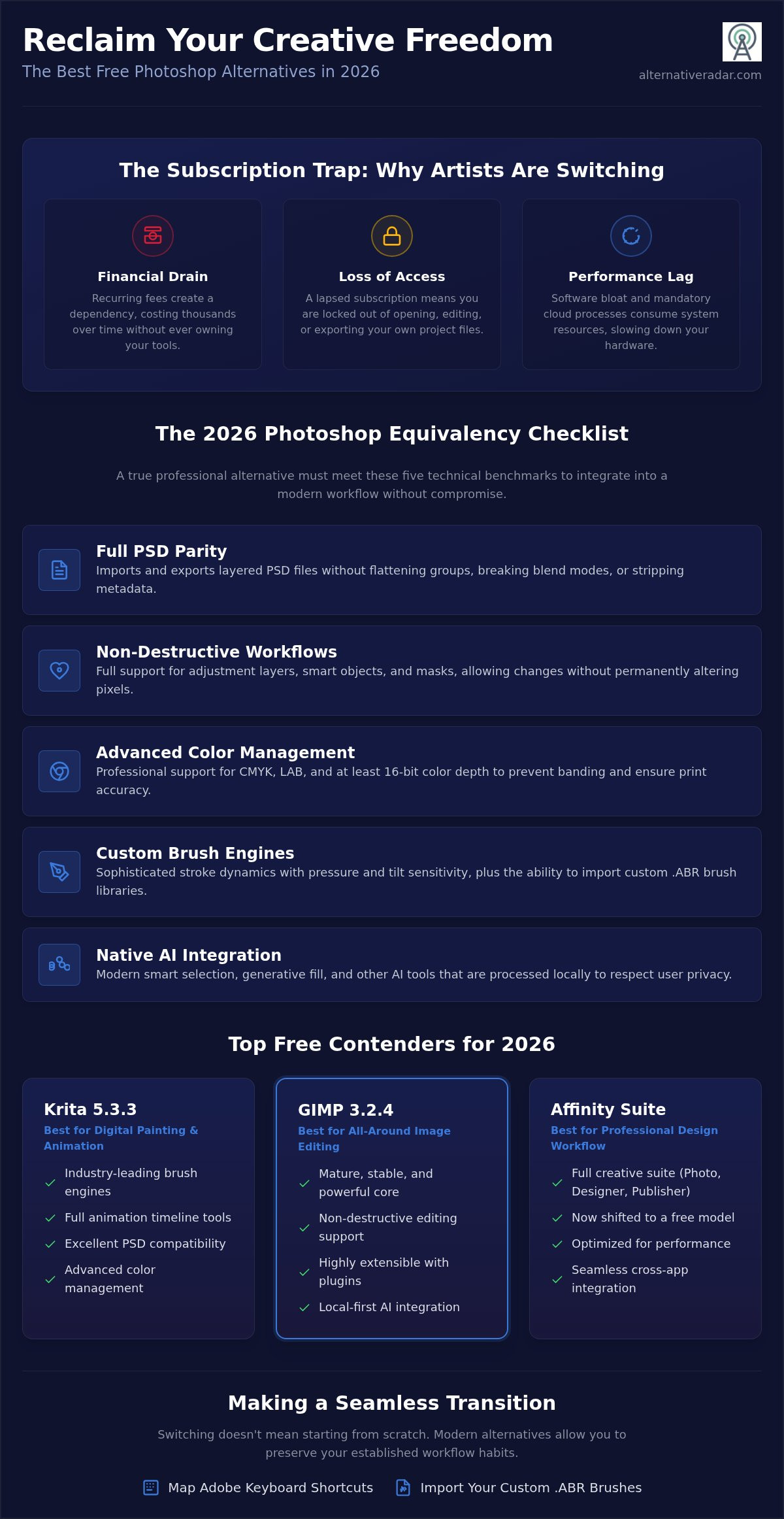
The creative industry has reached a tipping point where subscription fatigue is no longer just a minor annoyance; it’s a financial drain that impacts professional sustainability. For many artists, finding a reliable photoshop alternative for digital painting has become a strategic necessity rather than a cost-saving experiment. The shift toward permanent “Software as a Service” models has left creators vulnerable to price hikes and sudden changes in terms of service. You shouldn’t have to pay a monthly fee just to keep the rights to access your own work.
The Problem with Subscription-Only Models
Over a five-year period, the cumulative cost of a professional creative suite can reach thousands of dollars. This model creates a dependency where you stop owning your tools and start renting them. The risks of this arrangement are significant for long-term productivity:
- Loss of file access: If your subscription lapses, you lose the ability to open, edit, or export your own proprietary projects.
- Performance degradation: Mandatory cloud background processes often consume system resources, causing noticeable hardware lag during intensive painting sessions.
- Software bloat: Corporate developers often prioritize new, unproven features over the stability of core tools to justify recurring fees.
Switching to a standalone or open-source tool restores your data sovereignty and frees up CPU cycles for actual creative work. It’s about taking back control of your hardware and your budget.
The 2026 State of Open-Source Graphics
Open-source development cycles have accelerated, focusing on stability and user-requested features rather than corporate bloat. Recent releases like GIMP 3.2.4 and Krita 5.3.3 offer specialized brush engines and animation timelines that rival industry leaders. In 2026, the gap has closed significantly because community-driven projects prioritize local-only AI processing. This approach ensures your creative data stays on your machine, avoiding the privacy concerns associated with cloud-based generative models.
The democratization of these tools means that high-end features like non-destructive layers and 32-bit color support are now accessible to everyone. Even corporate-backed suites like Affinity have shifted to free models to compete, proving that the market is moving away from restrictive licensing. By finding the best alternative to popular software in 2026, you empower yourself to work without artificial restrictions. Modern engines are built for performance, proving that “free” no longer implies a compromise in professional power. Selecting a photoshop alternative for digital painting today is about choosing a workflow that respects your time, your privacy, and your creative independence.
The Photoshop Equivalency Checklist: 5 Must-Have Features
A Photoshop equivalent is a professional-grade editor supporting non-destructive workflows and AI-assisted selection. If a software package lacks these core capabilities, it functions as a basic sketchpad rather than a production tool. A true photoshop alternative for digital painting must integrate into a professional pipeline without creating bottlenecks or data loss. We have identified five technical benchmarks that define professional equivalency in 2026.
- Full PSD Parity: The software must import and export layered PSD files without stripping metadata, flattening groups, or breaking blending modes.
- Non-Destructive Workflows: Support for adjustment layers and smart objects is mandatory. You should be able to tweak your color balance or scale a layer without permanently altering the original pixel data.
- Advanced Color Management: Professional work requires support for CMYK, LAB, and at least 16-bit color depth. This prevents the banding issues often found in 8-bit web-only editors.
- Custom Brush Engines: A painting tool is only as good as its stroke dynamics. It must support pressure sensitivity, tilt, and the import of .ABR brush libraries.
- Native AI Integration: In 2026, equivalency includes smart selection tools and generative fill capabilities that respect user privacy.
Advanced Layer and Mask Management
Clipping masks and alpha channels are the backbone of any sophisticated digital painting. These tools allow you to define boundaries and transparency levels without destructive erasing. Professional alternatives also support vector paths within the raster environment. This hybrid approach lets you create sharp, scalable edges for logos or technical elements while maintaining a painterly feel elsewhere. Simple editors often fail this test by flattening complex groups or ignoring layer masks entirely during export. You can find more detailed technical breakdowns of these layer engines on Alternative Radar.
Generative AI and Neural Filters
The 2026 standard for a photoshop alternative for digital painting includes content-aware fill and background removal that matches Adobe’s performance. While proprietary systems rely on cloud-based processing, many free alternatives now integrate local AI models like Stable Diffusion. This shift toward local processing is a significant advantage for creators concerned about intellectual property. Your data never leaves your hardware, and you don’t have to worry about your work being used to train a corporate model. This local AI approach provides the same neural filter benefits, such as skin smoothing or object expansion, without the privacy risks of a subscription-based cloud service.
The Best Free Photoshop Equivalents: Comparison & Analysis
Selecting the right photoshop alternative for digital painting requires balancing your hardware’s performance with your specific artistic requirements. While many tools claim to match Adobe’s standards, only a few maintain stability under professional workloads. We have filtered the market to identify the engines that actually deliver on the promise of a zero-cost professional workflow. For a deeper dive into technical specifications, refer to our ultimate guide to professional image editing.
Krita: Superiority in Digital Painting
Krita 5.3.3 is the definitive choice for concept artists and illustrators. It doesn’t just mimic Photoshop; it outclasses it in several painting-specific areas. The brush engine depth allows for complex stroke dynamics that feel natural on high-end tablets. Integrated brush stabilizer tools eliminate the need for third-party smoothing software, which is a major efficiency gain. Krita also includes a full animation timeline in its base version. It’s a power move for creators who need to move between static illustration and motion. The learning curve is moderate, but it’s the best investment for anyone serious about digital illustration.
GIMP vs. Photopea: Desktop Power vs. Cloud Convenience
GIMP 3.2.4 remains the open-source powerhouse for heavy-duty image manipulation. It excels at RAM management when handling files larger than 1GB. This makes it superior for high-resolution print work where browser-based tools often crash. You can customize the GIMP interface to match the Photoshop layout, reducing the friction of switching. Professionals often prefer GIMP for its offline security. Your sensitive projects stay on your local drive, away from cloud-based vulnerabilities. It’s a reliable, privacy-first solution.
Photopea is the king of interface familiarity. It runs entirely in your browser and mirrors the Photoshop UI almost perfectly. It’s the ideal tool for quick edits on devices where you can’t install software. However, it relies on an internet connection and can struggle with complex, multi-layered PSD files. Performance stays high for social media graphics, but it lacks the deep hardware integration of a desktop app. Choose Photopea for convenience and GIMP for raw processing power.
Krea.ai represents the 2026 wave of AI-first creative equivalents. It prioritizes generative workflows and real-time upscaling. While it lacks the manual brush control of Krita, it’s an essential photoshop alternative for digital painting when your project requires rapid prototyping or AI-assisted background generation. It bridges the gap between traditional editing and modern generative art.
Transitioning Workflows: How to Switch Software Without Starting Over
Muscle memory is the primary barrier to switching creative suites. You’ve spent years perfecting your “Adobe reflex,” so the thought of relearning every hotkey is daunting. However, a professional photoshop alternative for digital painting in 2026 allows you to migrate your settings rather than abandoning them. By following a structured technical transition plan, you can maintain your productivity levels from day one.
- Step 1: Map Keyboard Shortcuts. Most alternatives like Krita and GIMP offer an “Adobe” profile in the preferences menu. This instantly aligns your left hand with the standard B, E, and Ctrl+T commands you already know.
- Step 2: Import Custom Assets. Don’t leave your brush library behind. Modern engines support .ABR files natively. Drag and drop your custom brushes and .ACO color swatches to maintain your signature texture and palette.
- Step 3: Build Workspace Templates. Set up a default document that opens at 300 DPI with pre-configured adjustment layers. This ensures a non-destructive start to every new project without manual setup.
- Step 4: Verify PSD Compatibility. Open a complex archived project. Check if blending modes, clipping masks, and layer groups remain intact. Identifying these translation gaps early prevents data loss during final exports.
Customizing the Interface for Familiarity
Professionals rely on spatial awareness. If your layers panel isn’t where you expect it, your stroke rhythm breaks. Use dockable panels to mimic the Adobe layout. For GIMP users, the “GIMP-Ps” plugin automates this process by skinning the interface to match the Photoshop CC aesthetic. You can also create custom toolbars that house only the specific actions you use most frequently. This level of personalization ensures you spend more time painting and less time searching through menus. If you need to verify which tool matches your specific hardware specs, compare professional software benchmarks on our platform.
Managing File and Font Compatibility
Leaving the Adobe ecosystem often means losing access to proprietary font libraries. To avoid broken layouts, identify open-source font equivalents before you migrate your active projects. Always save a “master” version in the software’s native format and a “delivery” version in PSD. This practice ensures cross-platform readability while preserving your editable non-destructive layers. For larger organizations handling these shifts at scale, consult our popular open-source software guide to manage the enterprise-level stack transition. Consistent file naming and font substitution protocols are essential for a professional photoshop alternative for digital painting to work in a collaborative environment.
Beyond the Big Names: Finding Your Niche Creative Tool
Efficiency in a creative workflow is about using the right tool for the specific task at hand. While a general photoshop alternative for digital painting is excellent for complex textures and layered compositions, it might be overkill for a simple social media layout or a technical diagram. Niche tools offer streamlined interfaces that strip away unnecessary features, reducing hardware load and significantly speeding up export times. You shouldn’t feel obligated to use a single “do-it-all” program when a specialized tool can complete the same task in half the time.
For creators who prioritize mobile-first content, lightweight browser-based editors provide a faster path to publication. These tools often include pre-set templates for modern social media aspect ratios, eliminating the need for manual canvas setup. By moving these smaller tasks to specialized editors, you keep your primary workstation free for resource-intensive digital painting projects. This tiered approach to software ensures that your hardware performance remains optimal where it matters most.
Vector vs. Raster: When to Choose Inkscape
Photoshop isn’t always the right choice for professional scaling. While it has basic vector paths, it remains a raster-first engine. Inkscape provides a dedicated environment for SVG creation, making it the logical replacement for Adobe Illustrator. It allows for infinite scaling without pixelation, which is essential for logo design, icon sets, and typography. Integrating Inkscape into your new free software stack provides a level of precision that general painting tools cannot match. You can create sharp, mathematical shapes in Inkscape and then import them into your digital painting software for final texturing and lighting.
Final Verdict: Choosing Your New Daily Driver
Your final choice depends on your specific creative persona. If you are a concept artist or illustrator, Krita is your definitive daily driver due to its superior brush engine. If your work involves heavy-duty photo manipulation and print preparation, GIMP remains the industry standard for open-source reliability. For those who need a familiar interface without a local installation, Photopea fills the gap perfectly for quick edits. Mastering these community-driven tools offers long-term benefits, including permanent file access and a voice in future feature development through open-source feedback loops.
Navigating these choices is simpler when you use a logic-based filter. Our platform helps you sort through dozens of options based on licensing classifications, local AI capabilities, and hardware compatibility. You don’t have to test every tool yourself because we have already done the technical vetting. Find your perfect software replacement on Alternative Radar and build a professional workflow that avoids the subscription burden while maximizing your creative output. Choosing a photoshop alternative for digital painting in 2026 is a strategic decision that protects your budget and your data sovereignty.
Secure Your Creative Independence in 2026
Professional creativity no longer requires a monthly subscription fee. The 2026 software landscape provides powerful engines like Krita and GIMP that match Adobe’s core capabilities while prioritizing your data sovereignty. By focusing on full PSD parity and non-destructive workflows, you can find a reliable photoshop alternative for digital painting that integrates seamlessly into your current production pipeline. Transitioning is a matter of mapping your existing muscle memory to these modern, community-driven platforms.
We provide objective, feature-by-feature software comparisons to help you navigate these choices with precision. Our analysis stays updated with the latest 2026 releases and local AI trends to ensure you choose a tool that respects your privacy and hardware performance. Stop renting your creative tools and start owning your workflow through logic-based filtering. We have already done the technical vetting so you don’t have to waste time on unstable builds.
Explore the full directory of software alternatives on Alternative Radar to find the exact match for your artistic persona. It’s time to build a sustainable, cost-effective studio that puts your creative output first.
Frequently Asked Questions
Can these free alternatives really open and save .PSD files without errors?
Most professional alternatives can open and save layered .PSD files, though complex proprietary features like specific Smart Objects or niche Neural Filters may require rasterization. Krita 5.3.3 and Photopea offer the highest level of parity, ensuring that layer groups, blending modes, and masks remain intact. Always verify your file after export by reopening it in a different viewer to ensure no metadata loss occurred during the transition from Adobe’s proprietary format.
Is GIMP better than Photoshop for professional digital painting?
GIMP is not specifically designed for digital painting; it excels at heavy-duty image manipulation and photo retouching. For a dedicated photoshop alternative for digital painting, Krita is the superior choice due to its advanced brush engines and stabilizer tools. GIMP 3.2.4 is a powerful utility for post-processing and technical edits, but it lacks the natural stroke dynamics required for professional-grade concept art or illustration.
Does Photopea have generative AI features like Adobe Photoshop?
Photopea integrated generative AI features in early 2024 and continues to expand its “Magic Replace” and background removal tools in 2026. These features function similarly to Adobe’s Firefly but operate within your browser. While convenient, these tools rely on cloud-based processing. If you require local AI processing for better intellectual property protection, desktop applications like Krita with specific plugins are a more secure option for your professional projects.
Which free Photoshop equivalent is best for absolute beginners?
Photopea is the best choice for absolute beginners because its interface is an almost exact clone of Photoshop, eliminating the need to learn a new layout. It requires no installation and works on any hardware with a browser. If the beginner intends to focus strictly on illustration, Krita is the better long-term investment. Its dedicated community provides extensive tutorials that simplify the learning curve for its specialized painting and animation toolsets.
Can I use these free tools for commercial design and client work?
You can use these free tools for commercial design and client work without any licensing fees. Open-source software like GIMP and Krita is released under the GNU General Public License, which explicitly allows for commercial use of the output you create. Unlike subscription models, you own the rights to your work entirely. This makes them a sustainable photoshop alternative for digital painting for freelancers and small studios looking to reduce overhead.
Do these free equivalents support drawing tablets and pressure sensitivity?
All top-tier alternatives support modern drawing tablets, including brands like Wacom, Huion, and XP-Pen. These tools utilize standard WinTab or Windows Ink drivers to provide full pressure sensitivity and tilt support. Krita specifically offers deep customization for brush sensors, allowing you to map pressure curves to specific artistic needs. Ensure your tablet drivers are updated to the latest 2026 versions to maintain stability across different operating systems like Linux, macOS, or Windows.
How do I transfer my custom Photoshop brushes to GIMP or Krita?
Transferring your custom .ABR brush libraries is a straightforward process in both Krita and GIMP. In Krita, you can import them via the Resource Manager, while GIMP allows you to drop the files directly into the brushes folder in your user directory. While the basic shapes and textures transfer perfectly, you may need to spend a few minutes recalibrating the stroke spacing or pressure dynamics to match your original Photoshop settings exactly.
Is there a free Photoshop equivalent that works entirely offline for privacy?
Krita and GIMP are the best choices for creators who need to work entirely offline for privacy and security. These applications install directly on your hardware and don’t require an active internet connection to function. Unlike cloud-based tools, they don’t track your usage data or require periodic check-ins with a central server. This local-first approach ensures that your creative projects and intellectual property remain strictly on your own physical storage devices.