
The most popular database tool may be the wrong fit for your team. Choosing database management tools for developers by feature count or name recognition can leave you with a client that doesn’t support your database engines, a workflow that adds friction, or a deployment model that doesn’t match how you build and ship software.
That confusion is understandable. Database engines, desktop clients, migration tools, and hosted platforms can overlap, but they solve different problems. A long feature list won’t tell you whether a tool fits your stack, supports your team’s workflow, or makes sense as a local, hosted, or self-managed option.
This guide compares tools by practical fit, not popularity alone. You’ll learn how the main categories differ, assess compatibility and deployment trade-offs, and narrow your options based on your development setup and team needs. You’ll also get a straightforward way to build a shortlist and compare free, open-source, and premium software. Use these criteria to make a more informed choice, then explore relevant options through Alternative Radar’s software comparisons.
Key Takeaways
- Separate database engines, graphical clients, and hosted platforms before comparing options; each serves a different role in a development setup.
- Compare database management tools for developers by supported engines, workflow fit, deployment model, collaboration needs, and licensing.
- See how DBeaver, pgAdmin, JetBrains DataGrip, TablePlus, and Beekeeper Studio fit into the client category.
- Use the CLI, a provider console, or a desktop client based on the task at hand; no single interface is essential for every developer.
- Build a focused shortlist by defining your stack and constraints, then test representative workflows in a non-production environment.
What database management tools for developers actually include
Database management tools are software developers use to connect to databases, inspect their structure, run queries, edit data, and handle routine administrative tasks. The phrase describes a layer of software around a database, not necessarily the database itself. A client can help you work with data without replacing the system that stores and processes it.
Keeping those roles separate makes comparisons more useful. A database engine defines how data is stored and queried; a client provides an interface for working with an engine; a development platform combines database access with other services. The Database management system reference explains the underlying system’s role. The tools developers use to connect to it vary by workflow.
Database engine, database client, or development platform?
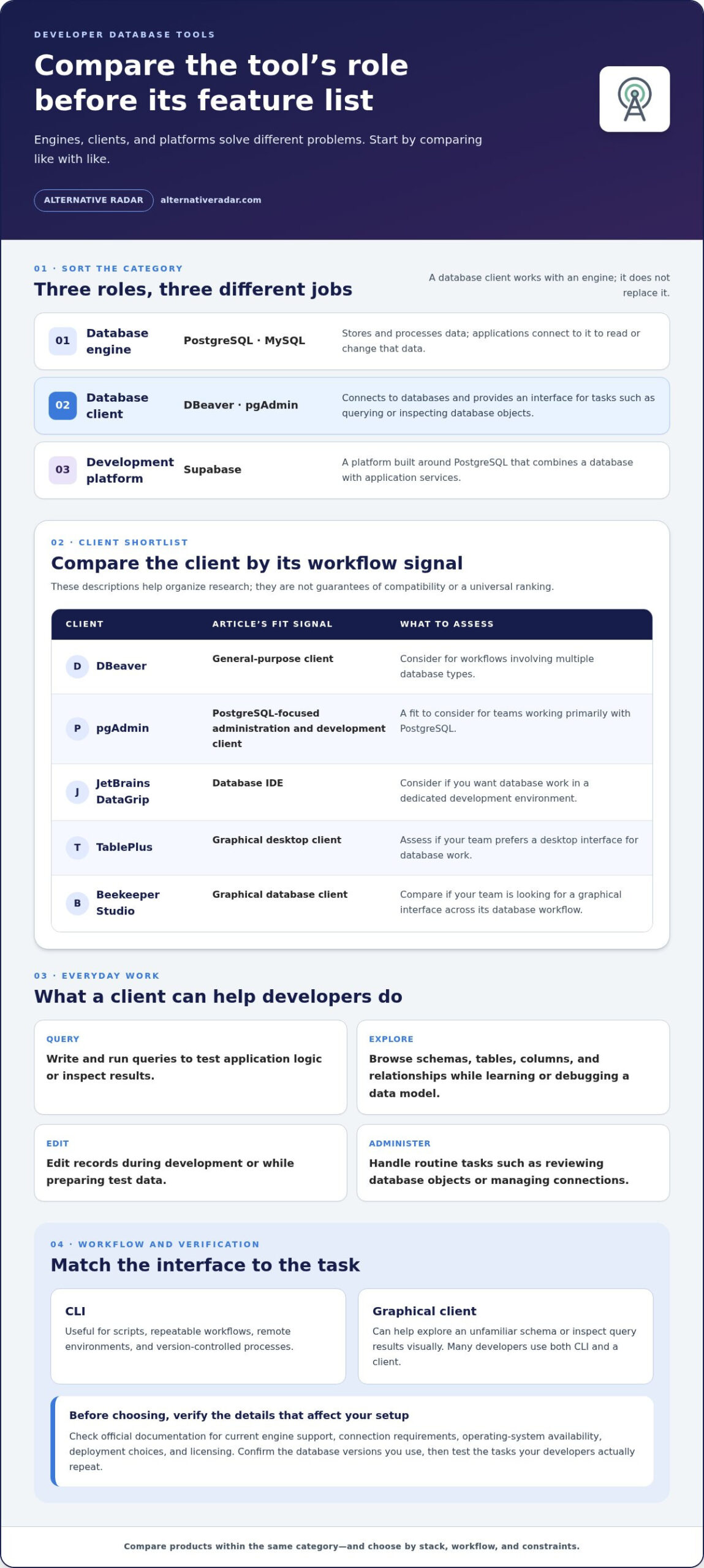
PostgreSQL and MySQL are database engines. They store and process data, and applications connect to them to read or change that data. DBeaver and pgAdmin are clients: they provide interfaces for connecting to databases and performing tasks such as querying or inspecting database objects. They don’t replace the engine.
Supabase is a different category. It’s a development platform built around PostgreSQL that combines a database with application services. That broader scope makes it unlike a standalone graphical client, even though developers may use it to work with a database. Compare platforms with platforms, and clients with clients, rather than treating every database-related product as interchangeable.
Which developer tasks do database tools support?
A client can make common development work easier to see and repeat. Depending on the tool and permissions, developers can use it to:
- Write and run queries to test application logic or inspect results.
- Browse schemas, tables, columns, and relationships when learning or debugging a data model.
- Edit records during development or while preparing test data.
- Handle routine administration, such as reviewing database objects or managing connections.
These tasks don’t make every client a production-operations solution or a substitute for database architecture. Designing a reliable data model, setting access controls, planning backups, and managing production performance require broader decisions and safeguards. A graphical interface can expose controls, but the team still needs to understand the effect of an action and the permissions under which it runs. Use extra care with production data, where an accidental change can have consequences beyond a local test.
Database management tools for developers don’t make the command line obsolete. CLI tools are useful for scripts, repeatable workflows, remote environments, and version-controlled processes. A graphical client can help you explore an unfamiliar schema or inspect query results visually. Many developers use both. Choose the interface that fits the task, environment, and level of repeatability you need.
Database management tools for developers: categories and shortlist
Start with the job a tool performs, then compare products within that category. A graphical database client connects to databases your team already runs; a database-specific utility focuses on one engine; an integrated development platform combines database access with a wider application stack. This distinction keeps your shortlist focused on products that solve the same problem.
For a broader overview of familiar options and their uses, see Coursera’s Popular Database Management Tools. The examples below show how to organize a developer shortlist, not how to declare a universal winner.
Multi-database clients versus database-specific tools
Cross-engine clients can be useful when a project or team works with more than one database. A focused client may make more sense when most work centers on a single engine and its development workflow. Consider not only how many engines you use, but also how often developers switch between them, share connections, or work across operating systems.
Consider these client examples:
- DBeaver: A general-purpose client to consider for workflows involving multiple database types.
- pgAdmin: A PostgreSQL-focused administration and development client, suited to teams working primarily with PostgreSQL.
- JetBrains DataGrip: A database IDE option for developers who want database work within a dedicated development environment.
- TablePlus: A graphical client to assess if your team prefers a desktop interface for database work.
- Beekeeper Studio: Another client to compare if your team is looking for a graphical interface across its database workflow.
Use these descriptions to guide your research, not as guarantees of compatibility. Check each product’s official documentation for current engine support, connection requirements, operating-system availability, deployment choices, and licensing. Confirm the exact database versions your team uses, since broad compatibility claims may not cover every feature or version you rely on. Also test the tasks your developers actually repeat instead of choosing by the length of a supported-engine list.
Standalone clients versus integrated platforms
A standalone client typically connects to an existing database. It gives developers an interface for working with that system, while the database remains independently deployed and managed. Supabase has a broader, PostgreSQL-centered platform scope: its database workflow is integrated with application development services. That can suit projects looking for a combined environment, but it isn’t a like-for-like substitute for a client that connects to databases across an existing stack.
Compare the product’s scope as well as its interface. Do you need a client for databases already in use, or a platform that brings database access together with other development services? Include licensing and deployment in the comparison, and use each vendor’s documentation to confirm current details. Terms and capabilities can vary by product tier.
To narrow the field, write down your engines, everyday tasks, and preferred setup. Then compare relevant software by features, pricing information, pros, and cons. Alternative Radar’s software comparisons help you explore free, open-source, and premium options while keeping a discovery resource distinct from a database client.
Compare developer database tools by workflow, compatibility, and control
A useful comparison starts with what your team needs to do, not with a feature checklist. Check compatibility against the actual database stack, including the engine and version your team runs. A tool may support an engine generally without supporting the specific workflow or version your application depends on.
Use the matrix as a checklist for comparing products, not as a ranking. For each product, confirm the details in its current official documentation. A category label or familiar product name doesn’t prove a particular feature, deployment option, or license is available.
| Tool | Engine compatibility | Interface and workflow | Deployment and collaboration | Licensing |
|---|---|---|---|---|
| DBeaver | Check support for the specific engines and versions your team uses. | Test SQL editing, schema browsing, data inspection, and query history against common tasks. | Compare documented deployment choices and team-sharing features with your setup. | Review the current editions and license terms. |
| pgAdmin | Check PostgreSQL version support in the official documentation. | Test the query, schema, and data workflows your team needs. | Compare installation, deployment, and collaboration options with your requirements. | Review the current license terms. |
| JetBrains DataGrip | Check support for your specific engines and versions. | Assess the editor, browsing, inspection, and history features against your daily work. | Compare documented deployment and team workflows. | Review current plans and license terms. |
| TablePlus | Check support for your specific engines and versions. | Test SQL editing, schema browsing, and data inspection with representative tasks. | Compare documented deployment and collaboration options with your setup. | Review the current license terms. |
| Beekeeper Studio | Check support for your specific engines and versions. | Test query, schema, data, and history workflows your team relies on. | Compare documented deployment and team-sharing options. | Review the current editions and license terms. |
| Supabase | Check the current database scope and supported versions. | Assess the integrated platform’s database-development workflow. | Review documented hosting, access, and collaboration controls. | Review current plans and license terms. |
Database compatibility and query workflow
Test the work your developers repeat. Can they write and run SQL comfortably, inspect schemas without extra steps, review returned data, and find or reuse query history? Check whether the client supports your team’s database engines and versions, including the connection method your environment requires. Separate confirmed features from assumptions based on what similar clients often provide.
Deployment, collaboration, and licensing trade-offs
Deployment affects how a tool fits your setup. Compare local installations with self-hosted or cloud-hosted options only where the product documents them. For team use, assess shared access, permissions, and how developers exchange queries or connection settings. These workflow checks aren’t security assurances; evaluate access controls in the context of your own environment.
Distinguish open-source licensing from commercial editions and hosted plans. Confirm current terms in official sources, including any limits tied to a particular edition. Apply the same criteria to every candidate, and treat unverified details as questions rather than implied advantages or disadvantages.
Do developers need a database management tool beyond the CLI?
No. A graphical database client can be useful, but it isn’t a requirement for every developer. The right setup depends on how many databases you work with, which tasks you repeat, how your team shares work, and whether you prefer a terminal, browser console, or desktop interface. Database management tools for developers should fit those habits, not add another app by default.
Think of the options as complementary. A CLI can support scripted, repeatable tasks; a provider console can bring hosted database controls into one browser interface; a desktop client can make browsing and querying more visual. Teams can use one, combine them, or change their approach as projects evolve.
When the command line or provider console may be enough
A command-line workflow may cover routine needs if you mainly connect to one database, run familiar queries, and already use scripts or documented commands for recurring tasks. It can also suit terminal-based development habits. If your work involves a hosted database on one provider, that provider’s console may be convenient for tasks available through its interface.
Neither option automatically covers every administrative or collaboration need. A console is shaped by its provider, while command-line workflows depend on the commands and scripts your team maintains. Consider where you need to inspect data, coordinate shared query work, or manage connections. Then identify whether your current setup handles those tasks clearly.
When a dedicated database client adds practical value
A desktop client may be worth testing if you regularly switch between databases, explore unfamiliar schemas, or inspect returned data visually. Browsing tables and columns through an interface can help when tracing application behavior or getting oriented in a database another team maintains. The value depends on the task: a visual interface may suit exploration, while a scripted workflow may be preferable for repeatable operations.
Use these questions to decide whether a client would address a real gap:
- Do you connect to several databases or engine types during a typical project?
- Do you often inspect schemas or query results as part of debugging?
- Would a shared way to organize or revisit queries help your team?
- Does your preferred interface make common tasks easier to follow and repeat?
If your answers point to a desktop client, test it against representative development tasks rather than choosing on interface alone. If the CLI or provider console already fits your workflow, another tool may not add enough practical value. Developers assessing open-source options across their broader software stack can also consult this guide to popular open-source business software.
As you build a shortlist, you can also use Alternative Radar’s software discovery platform to explore free, open-source, and premium choices.
Choose and test a database management tool for your development setup
A shortlist is useful only if it reflects your real stack and day-to-day work. Define what a tool must support before comparing conveniences, then test the strongest candidates on representative tasks. This keeps a polished interface or a long feature list from distracting you from compatibility, licensing, and workflow fit.
Build a shortlist from your actual requirements
Write down your database engines and versions, operating environments, recurring tasks, and team constraints. Separate must-haves from preferences: support for a required engine or an acceptable license may be essential, while a particular layout or visual feature may simply be nice to have. Eliminate candidates that miss a must-have before comparing optional features.
Use this sequence to create a focused shortlist:
- Map your stack. List the engines and versions you use, where they run, and the operating systems developers need to work on.
- Identify common tasks. Note the queries, schema checks, data inspection, and other development work the tool should support.
- Set constraints. Record required compatibility, deployment preferences, licensing needs, and any team workflow requirements.
- Choose trial criteria. Pick a small set of tasks every candidate must complete, plus optional features that could make routine work easier.
Keep the scorecard simple. Mark each must-have as “pass” or “fail,” then rate preferred features consistently, for example from “not useful” to “useful.” A candidate that fails an engine or licensing requirement shouldn’t recover its place through optional conveniences. For an example of applying consistent criteria to a different software category, see this open-source CRM software comparison.
Run a focused evaluation before adopting a tool
Test candidates in a non-production environment, using representative but non-sensitive data. Re-create a small schema, run a familiar query, inspect the results, and try the workflow your team would actually share. For example, check whether developers can find the database objects they need and return to a query without using production connections or data.
Use current product documentation to verify details that could affect adoption, including supported database versions, operating environments, deployment options, collaboration features, and license terms. Don’t infer a capability from the product category or from another edition. Record where each candidate works well, where it adds friction, and which requirements remain unmet.
Choose database management tools for developers by comparing those results against your scorecard, not by relying on a popularity ranking. To compare relevant features, pricing information, pros, and cons across free, open-source, and premium software, explore software options on Alternative Radar.
Turn Your Shortlist Into a Confident Choice
Before adopting a tool, agree on what “good fit” means for your team. Choose a small set of real development tasks, decide which requirements are non-negotiable, and compare candidates against the same criteria. That gives you a practical basis for choosing database management tools for developers instead of defaulting to the most familiar name.
Keep the decision adaptable. As your stack or team workflow changes, revisit whether your current setup still supports the work you need to do. A tool that fits one project may not suit the next, and a clear comparison makes it easier to reassess without starting from scratch.
Ready to narrow your options? Compare software options on Alternative Radar to review features, pricing information, pros, and cons across free, open-source, and premium software. Use the comparison to identify candidates for your own focused evaluation, then choose the setup that supports your team’s next step.
Frequently Asked Questions
Do developers need a database management tool if they already use the command line?
No, a separate graphical client is optional. A developer who mainly runs saved commands against one database may find a terminal sufficient, while someone who frequently compares query results or explores unfamiliar tables may prefer visual browsing. For example, a team debugging several services might value a shared client workflow, while a solo developer with scripted tasks may not. Choose database management tools for developers based on actual tasks, database count, and collaboration needs, not assumptions about productivity.
Can one database management tool work with multiple database engines?
Yes, some clients support multiple engines, but compatibility varies by product, engine, and version. Check current compatibility documentation for the exact database setup you use before adopting a client. A multi-engine interface can be convenient for a project that connects to PostgreSQL and MySQL, for example, but don’t assume the same features or behavior are available for both. Database-specific tools may offer a more focused experience for one engine.
Is a database client the same thing as a database management system?
No. A database management system stores, organizes, and manages data; a client provides an interface for connecting to and working with one or more database systems. Think of the database as the service your application relies on, and the client as one way a developer interacts with it. Some development platforms bundle database access with additional services, so compare what each product actually includes rather than relying on its label.
Are open-source database management tools suitable for commercial development?
They can be suitable, but the answer depends on the specific project’s license, how your organization uses the software, and its internal requirements. Open-source tools don’t all share the same terms. Before adoption, review the current license text and identify any obligations relevant to your intended use, such as redistribution or modification. For company-wide decisions, route licensing questions through the appropriate internal reviewer. This is practical guidance, not legal advice.
Can developers use a database management tool with a production database?
Some tools can connect to production databases, but the ability to connect doesn’t mean every action or workflow is appropriate there. Follow your organization’s access controls, approval processes, and data-handling policies. For instance, use the access level and process designated for a read-only investigation rather than assuming a development connection is suitable. Consider whether the task can be completed against a test or staging environment, especially before running queries that change data.
Should a developer choose a database tool based on its feature count?
No. Start with compatibility, the work you do regularly, deployment preferences, and team requirements. A feature matters only if it supports a real task, such as reviewing query history or coordinating shared workflows. Extra options can add complexity without improving the fit. Build a short list from non-negotiable requirements first, then compare useful additions among the candidates that remain. This keeps a long feature list or familiar brand from deciding for you.