

Open-source software can offer more control, but it doesn’t automatically make team document work simpler. Open source document collaboration tools let teams work on shared files using software whose source code is available under an open-source license; the license, deployment model, and features shape what that control means in practice.
A good fit for open source document collaboration should balance privacy, familiar file formats, and manageable costs. The challenge is that access controls and compatibility vary, while free software may still require hosting or administration. This guide explains how open-source document collaboration works and what to compare before choosing a tool.
You’ll see how user permissions affect shared work, where file compatibility can create friction, and how costs differ between free and paid options. Use these factors to narrow your shortlist around the way your team works, rather than choosing based on license type alone.
Key Takeaways
- Compare how tools support simultaneous editing and show who made changes before settling on a collaboration workflow.
- Match permission settings to the people who need to view, edit, or manage shared documents.
- Test how files move between formats and applications to spot compatibility friction early.
- Look beyond the plan price by considering hosting and administration needs when weighing free and paid options.
What Is Open Source Collaboration Software?
Open-source collaboration software lets teams share and edit documents using software whose source code is available under an open-source license. When comparing open source document collaboration tools, assess editing, file storage, and deployment together, since these shape how a team works.
Real-Time Collaborative Editing
Real-time editing lets multiple people work in the same document instead of passing separate copies back and forth. For example, a team drafting a project brief can revise paragraphs while colleagues contribute at the same time. Look for visible editing activity and author attribution to help identify who made each change.
Version history can provide context when edits need review or recovery. Check whether the tool records changes by user and lets you access earlier versions. These details matter when several contributors revise a shared file, especially if the team needs to understand how a decision or passage changed.
For teams using Nextcloud or ownCloud, Collabora Online and ONLYOFFICE Docs are common open-source editing options to compare. Neither is the best fit for every workflow. Compare how each handles real-time editing, attribution, and the document formats your team uses.
Self-Hosted File Sharing and Editing
Self-hosting means the organization runs its own file-sharing infrastructure instead of relying entirely on a hosted service. Nextcloud and ownCloud can provide a place to store and share files, while an integrated editor supports document work. This lets teams make storage and editing decisions separately.
Check how the editing tool connects to the storage platform. Nextcloud and ownCloud can integrate with Collabora Online and ONLYOFFICE Docs, allowing teams to edit documents within their file-sharing workflow. The exact setup depends on the software and deployment, so compare integration requirements before choosing a combination.
Open-source document editing tools differ in licensing, features, and administration needs. Compare the editing experience, attribution, and how each tool fits your existing infrastructure. For an online editor, assess whether users can work together in a browser. For self-hosting, consider who will operate and maintain the software.
These platforms serve different roles. Storage software organizes shared files; editing software changes document content. Assess both, then compare a connected setup with a hosted editing option. This distinction helps teams choose based on control, collaboration, and how they want documents managed.
Data access control and security
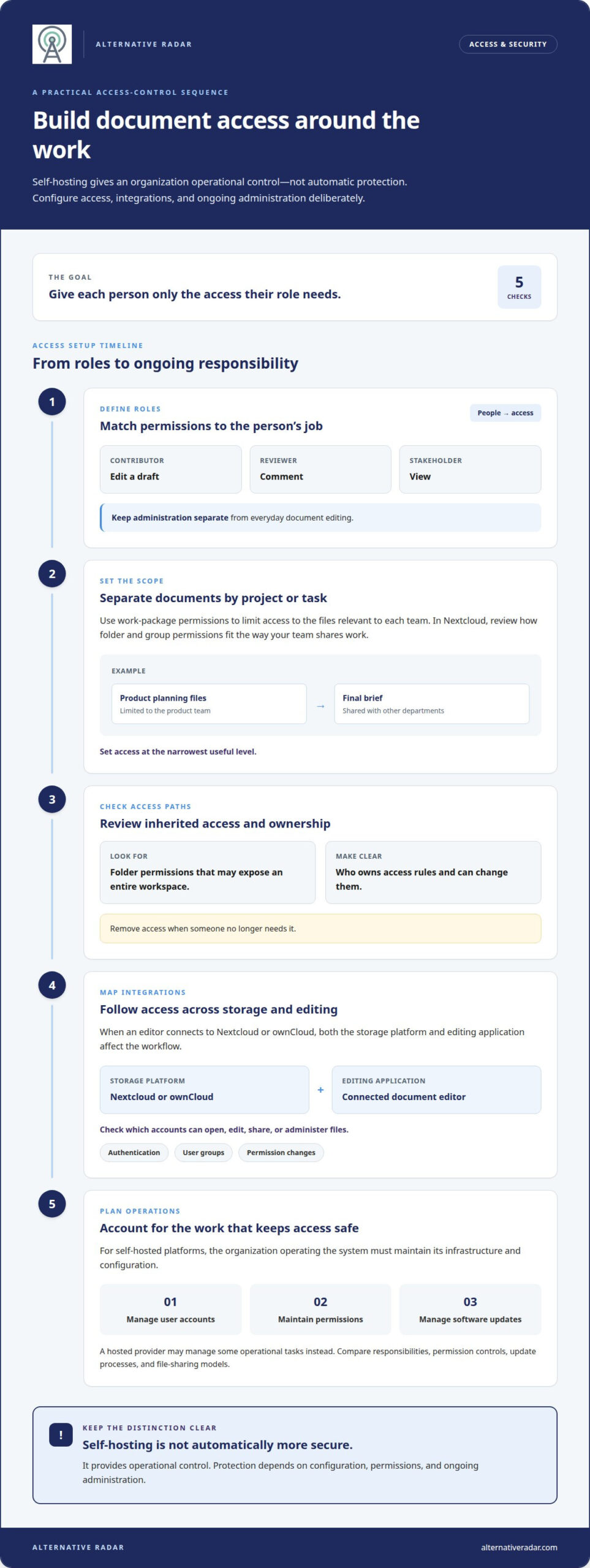
Self-hosted open-source platforms can support controlled document access, but security depends on configuration and ongoing administration. Hosting files on your own infrastructure gives your organization operational control, not automatic protection. For example, an administrator must manage user accounts, permissions, and software updates. The setup determines how effectively these controls protect shared documents.
Start by matching each role to the access it needs. A project contributor may edit a draft, a reviewer can comment, and a stakeholder can view it. Keep administrative permissions separate from everyday editing. In Nextcloud, review how folder and group permissions fit the team’s sharing practices, and remove access when someone no longer needs it.
Work-package permissions help separate documents by project or task. For example, a product team could limit access to its planning files while sharing a final brief with other departments. Set permissions at the narrowest useful level, then consider whether inherited folder access exposes the entire workspace. Clear ownership also helps teams know who can change those rules.
Integrations add another layer of access. If a document editor connects to Nextcloud or ownCloud, both the storage platform and editing application affect the workflow. Map which accounts can open, edit, share, or administer files across the connection. Review how authentication, user groups, and permission changes work together before relying on the integrated setup for sensitive work.
Self-hosting is not automatically more secure than a hosted service. The organization operating the platform must maintain its infrastructure and configuration; a hosted provider may manage some operational tasks instead. Compare the responsibilities, permission controls, update process, and file-sharing model. For a broader look at software choices, explore software comparison options alongside these security criteria.
File-format compatibility and interoperability
An online office suite must handle the formats your team receives and shares. Compatibility affects more than opening a file: layout, comments, tracked changes, and embedded content may shift during editing or export. Compare each tool against the documents used in your workflows, not just its list of supported extensions.
For Microsoft Office files, test representative DOCX, XLSX, and PPTX documents in the chosen editor. Check whether headings, tables, formulas, charts, comments, and tracked changes remain usable after opening, editing, and saving. A file that opens successfully may still display differently or lose information during conversion. Review the final document in the application recipients use.
Open-source online office suites vary in how they handle document formats and complex layouts. Collabora Online and ONLYOFFICE Docs are often paired with file-sharing platforms, but compare the specific editing workflow your team needs. Try a document with tables, images, and comments, then export it and review the result. This practical test reveals friction that a format label can’t show.
Interoperability also depends on how documents move between storage and editing tools. In an enterprise file sync and sharing setup, confirm that users can open shared files, save changes, and find the updated version through the expected workflow. Consider how external collaborators receive documents and whether the process preserves the format they need.
Use a short test set before migrating active files. Include a text document, a spreadsheet with formulas, a presentation with images, and a PDF intended for viewing. Compare each file before and after editing, then note layout changes or missing features. Prioritize formats by how often teams exchange them and how costly errors would be. This helps determine whether a tool fits everyday collaboration or only simpler documents.
Open-source collaboration pricing
Open-source licensing doesn’t mean every collaboration setup costs nothing. Treat these as plan categories, not a complete estimate of operating costs.
Self-hosting changes the cost calculation. The software may be open source, but running it still involves infrastructure, such as a server, storage, and administration. A team managing its own deployment must account for the resources needed to operate and maintain it. A hosted plan may include some of those costs in its subscription instead.
Compare total cost by separating subscription charges from operational work. For a self-hosted setup, consider who will manage accounts, updates, storage, and backups. For a hosted plan, compare the included users, storage, and features with the team’s needs. These factors can matter more than the label “free” or “paid.”
Team size also affects the comparison. A per-user plan scales with the number of paid accounts, while a self-hosted option puts more focus on server capacity and administration. A global team may also need to consider how its chosen deployment supports distributed access. Estimate account numbers and resource needs based on the actual workflow, rather than assuming a powerful server is automatically the cheaper choice.
Use a practical comparison: list the plan price, expected users, hosting responsibilities, and required editing features. Then compare the recurring subscription with the effort and infrastructure involved in operating the software. This makes “free versus paid” a more useful decision than license cost alone. Explore software pricing comparisons to help assess the options.
Alternative Radar
Alternative Radar helps readers discover and compare software options when access, file compatibility, and total costs make a choice less clear. Its software recommendations bring together product details, including features, pricing, and pros and cons, so teams can assess how tools fit their workflows. Sponsored placements and affiliate-linked recommendations also support software discovery.
Use these comparisons to refine a shortlist: weigh the editing and sharing features your team needs against deployment responsibilities and plan costs. Then compare candidate tools with the formats your collaborators use. Alternative Radar is a useful next step when you want a clearer view of available software options before deciding which best fits your priorities.
Contact Alternative Radar to discuss software discovery and comparison.
Choose a workflow your team can sustain
Your next step is to choose a representative project and decide who will own the collaboration setup. A tool works in practice only when someone can manage its day-to-day use and teams can follow a shared process. Use those responsibilities to guide your shortlist, then select an option that fits how your organization works.
Open source document collaboration is a practical choice when software flexibility and team control align with your priorities. Keep the decision focused on fit, not popularity. Alternative Radar helps readers discover software through product comparisons, sponsored software placements, affiliate-linked software recommendations, and programmatic display advertising.
Use those resources to explore options and make a more informed decision. Contact Alternative Radar to discuss software discovery and recommendations. Your next choice can start with a clearer view of what your team needs.
Frequently Asked Questions
How do open-source document collaboration tools compare in features and usability?
Open-source tools differ in editing controls, deployment, file handling, and interface. Compare candidates using the same task: co-edit a meeting agenda, leave feedback, then reopen it on another device. Note which steps feel clear and which require administrator help. This reveals how well a tool suits your workflow more effectively than feature labels alone.
Which open-source platforms support real-time co-editing and comments?
Collabora Online and ONLYOFFICE Docs are options for real-time co-editing with Nextcloud or ownCloud. To compare comments, test whether collaborators can add, reply to, and resolve a note during simultaneous editing. Also inspect how the editor displays each participant’s changes. This distinguishes basic shared access from a workflow that supports review and discussion across a document.
What are the self-hosting requirements for open-source document collaboration software?
A self-hosted setup needs a server environment, storage, network access, and someone responsible for administration. Required capacity depends on file volume, concurrent use, and the chosen editor. Plan for user accounts, backups, updates, and access settings as ongoing operating tasks. If integrating Nextcloud or ownCloud, include both the file platform and editor in the deployment plan.
What are the pricing and licensing terms of popular open-source collaboration tools?
Pricing varies by product, deployment, and whether you choose self-managed software or a hosted plan. Open-source status describes licensing, not necessarily zero operating costs or free hosting. License terms also differ, so review the license for the exact version, including rules for use, modification, and redistribution. Compare subscription scope and hosting responsibilities separately.
How can I install and configure a self-hosted document collaboration platform?
Use the project’s installation documentation to guide setup. First, select a server environment and install the required file platform and editing software. Then connect the integration, create user accounts, and configure sharing permissions. Test with sample documents and accounts before moving team files. This sequence helps reveal connection or access issues before the platform becomes part of daily work.
What are the limitations and risks of open-source document collaboration software?
Key risks include administration workload, misconfigured permissions, format differences, and reliance on internal expertise. A self-hosted team manages its own update and backup routines; a hosted plan shifts some tasks while creating dependence on the provider. Complex documents may display differently between editors, and poor offboarding can leave access open. Assign administrators and test workflows before moving sensitive files.