
Why are you still paying a monthly rent for a creative suite when the most powerful design tools in 2026 don’t cost a cent? You likely stick with the industry leader because you’re worried about losing your layers, your shortcut muscle memory, or your ability to open client files. If you’re searching for a professional experience that is photoshop like free, you shouldn’t have to sacrifice your productivity or your professional standards.
You shouldn’t have to choose between a high subscription cost and a clunky, non-standard interface. We understand the frustration of trying to manage heavy RAW files and complex PSDs in software that simply cannot keep up with a professional workload. This guide identifies the most efficient alternatives that offer a familiar interface and full file support without the recurring bill.
You’ll learn which specialized engines match your specific workflow needs and how to migrate your projects without losing a single pixel. We’ve done the testing so you can stop following market leaders and start using tools that actually respect your resources. This is the objective breakdown of the best professional alternatives available right now.
Key Takeaways
- Evaluate how AI integration in 2026 has leveled the playing field between open-source tools and premium creative suites.
- Find the specific platform that delivers a photoshop like free interface to maintain your current shortcut muscle memory.
- Contrast the performance of GPU-accelerated desktop software with the accessibility of modern, browser-based editors.
- Choose specialized engines like Krita or Darktable to handle niche workflows that general editors often struggle to manage.
- Follow a systematic migration plan to move your brushes, swatches, and custom shapes without disrupting your project timelines.
The Evolution of Free Photoshop Alternatives in 2026
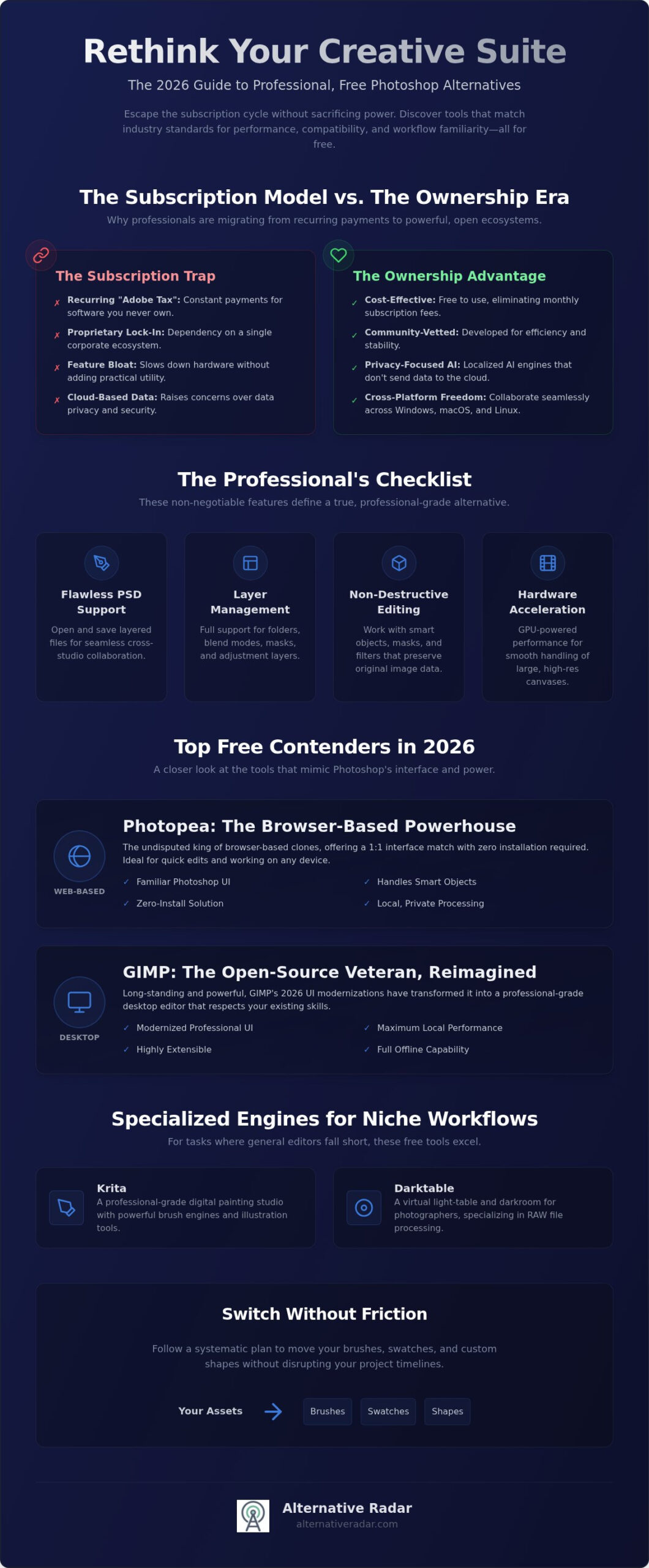
The creative industry has reached a tipping point regarding the “Adobe Tax.” In 2026, the shift away from recurring subscriptions isn’t just a cost-saving measure; it’s a strategic move toward software ownership and data privacy. Professionals are migrating to open-source ecosystems because these platforms now offer the stability and performance once exclusive to market leaders, providing an experience that is photoshop like free without the proprietary lock-in. This evolution has transformed “free” from a synonym for “limited” into a label for high-performance, community-vetted technology.
AI integration has been the primary catalyst for this change. While Adobe Firefly set the early benchmark, 2026 sees free alternatives integrating localized, privacy-focused AI engines that handle generative fill and automated masking with equal precision. Finding a tool that is photoshop like free now means accessing advanced neural filters without sending your data to a corporate cloud. The rise of these tools ensures that high-end features are no longer gated by a monthly fee.
Choosing a professional-grade alternative requires evaluating specific technical benchmarks. For those needing a broader view, this comprehensive comparison of raster graphics editors highlights how the gap between proprietary and open-source licenses has narrowed. To replace a professional workflow, a tool must provide:
- Flawless PSD support for cross-studio collaboration
- Sophisticated layer management including folders and blend modes
- Non-destructive editing via masks and adjustment layers
- Hardware acceleration for handling large, high-resolution canvases
Breaking the Subscription Cycle
The psychological shift toward software ownership is driving the adoption of open-source tools. Users are increasingly wary of “feature bloat” that slows down hardware without adding utility. Community-driven development focuses on efficiency and cross-platform compatibility, ensuring that remote teams can collaborate across Windows, macOS, and Linux without licensing friction. This stability is essential for long-term project archiving where access to files shouldn’t depend on an active monthly payment.
What Makes a Tool “Photoshop-Like”?
Interface familiarity is the first hurdle for any professional looking to switch. A true alternative mimics the standard layout of toolbars, panels, and canvas controls to minimize downtime. Beyond the UI, technical requirements like CMYK support for print and 32-bit float depth for high-end retouching are non-negotiable. The Photoshop Standard for raster editing in 2026 is defined by a non-destructive workflow that supports complex layer hierarchies, high-bit depth processing, and seamless PSD interchangeability.
The Best Free Software That Mimics Photoshop’s Interface
Many lists of “alternatives” mistakenly include template-based graphic design apps like Canva. While those tools are useful for social media, they lack the raster manipulation power required for a professional workflow. True alternatives must offer deep pixel control, layer masks, and advanced blending modes. If you’re searching for an experience that is photoshop like free, you need a dedicated raster editor that respects your existing technical skills without forcing you to relearn a new design language.
The 2026 landscape offers several engines that match the “Photoshop Standard.” These tools range from browser-based clones to heavy-duty desktop software. Choosing the right one depends on whether you value portability, local processing power, or specialized creative features like digital painting. You can use Alternative Radar to filter these options based on your specific OS and hardware requirements, ensuring you find a perfect match for your existing setup.
Photopea: The Browser-Based Powerhouse
Photopea is the undisputed king of the browser-based Photoshop clones. It provides a 1:1 interface match, mirroring the toolbar, layer panel, and menu structure of Adobe’s flagship product. It’s a zero-install solution that works on any device with a modern browser. Privacy is a major advantage here; despite running in a tab, Photopea processes your files locally on your machine. Your data isn’t uploaded to a server. It handles complex tasks like smart objects and content-aware fill with surprising speed, making it the ideal choice for quick edits or working on machines where you can’t install software.
GIMP and the New Professional UI
GIMP has long been the open-source veteran, but its reputation for a clunky interface has changed. The 2026 UI modernizations have made “Single Window Mode” the default, creating a workspace that feels familiar to any long-term Creative Cloud user. It excels at local hardware performance, utilizing your GPU to handle 4K+ resolutions without the latency sometimes found in web apps. Its plugin ecosystem is vast, allowing you to replicate specific Photoshop filters through community-developed scripts. For professionals who need a tool that is photoshop like free while maintaining offline access, GIMP remains a top-tier contender.
Krita and Pixlr: Specialized Alternatives
Krita has surpassed traditional editors for illustrators and concept artists. It focuses on brush engines and color management, offering a more fluid drawing experience than general-purpose raster tools. Conversely, Pixlr provides a streamlined, AI-assisted environment for those who need to perform quick retouching tasks. It uses localized AI to automate background removal and object selection, bridging the gap between a simple editor and a full-scale professional suite. These tools demonstrate that “free” in 2026 means having access to specialized power rather than a generic, watered-down experience.
Web-Based vs. Desktop Software: Choosing Your Environment
Efficiency depends on your technical environment. A tool that is photoshop like free can exist in two distinct ecosystems: the browser and the desktop. Each has specific implications for your hardware resources, project security, and overall stability. Choosing the wrong environment can lead to significant bottlenecks, especially when handling professional client work with tight deadlines.
Performance is the primary differentiator. Desktop applications tap directly into your system’s GPU acceleration, which is critical for rendering complex 3D textures or high-resolution brush strokes. Browser-based tools rely on WebGL and are often capped by the browser’s own memory limits. If you’re working on a 10,000-pixel canvas or a file with hundreds of layers, a desktop app will outpace a browser tab every time. Latency is another factor; even a slight delay in brush tracking can disrupt a professional artist’s flow.
Offline access remains a deal-breaker for many professionals. Browser editors require a constant handshake with a server. If your connection drops, your progress might stall or your ability to save could be compromised. Installed software operates entirely on your local machine, ensuring that you can maintain productivity during travel or network outages. This independence from the cloud is a core requirement for those who value reliability over portability.
Security and file management also vary between these two worlds. Local drives offer total control over sensitive client data, while cloud-integrated saving introduces third-party storage risks. For high-security projects or work involving non-disclosure agreements, keeping files on a local, encrypted drive is the professional standard. You don’t want to risk a data breach because a web-based platform had a security vulnerability.
When to Use a Browser-Based Editor
These tools are ideal for social media managers and marketing teams who need to produce quick assets across different workstations. The primary benefit is collaboration; you can share a project link instead of transferring massive files. However, be aware of technical limitations. Managing dozens of high-resolution layers in a browser can trigger memory leaks, potentially crashing the tab and losing unsaved changes. Use these for agility, not for heavy-duty production.
The Case for Installed Open-Source Software
Installed tools provide the stability required for long-form projects and massive print files. You gain full control over hardware resources, including the ability to designate specific scratch disks for temporary data storage. Customization is another significant advantage. Professional workflows often require deep-level keybinding and workspace scripting that browser interfaces cannot yet replicate. If your goal is to find a tool that is photoshop like free for intensive editing, an installed application is the superior choice.
Specialized Free Tools for Niche Creative Workflows
General raster editors provide great versatility, but niche projects often demand specialized engines. If you’re looking for an environment that is photoshop like free, your choice should depend on whether you’re manipulating pixels, painting from scratch, or processing RAW data. Using a general tool for a specialized task often leads to workflow friction and wasted time. Identifying the right specialized engine ensures you don’t spend hours fighting against a tool that wasn’t built for your specific output.
Krita for Illustrators and Concept Artists
Concept artists and illustrators frequently find that standard raster editors lack the tactile feel of natural media. Krita addresses this with a brush engine that includes advanced stabilization and customizable textures that outperform standard Photoshop brushes for drawing. It’s more than just a painting app; it features a complete 2D animation timeline for creating frame-by-frame sequences within a raster environment. Reliability is a key factor here. Krita maintains excellent tablet driver support, ensuring that pressure sensitivity and tilt functions remain consistent across various hardware brands without the need for constant troubleshooting.
Darktable for Professional Photographers
Photographers who rely on Photoshop primarily for its Camera Raw module should consider Darktable as their primary workspace. It offers a non-destructive RAW processing pipeline that handles high-bit depth files with professional precision. If your goal is to build a professional photography workflow that is photoshop like free, Darktable is the most efficient choice. It includes support for tethered shooting, which is a requirement for modern studio environments. The masking system is particularly powerful, combining parametric and drawn masks to isolate specific tonal ranges or colors without affecting the entire image.
No creative suite is complete without vector support. Inkscape serves as the ideal companion to raster tools, managing logos and scalable graphics that require mathematical precision. While tools like Canva or the free version of Adobe Express are useful for rapid social media layouts in 2026, they lack the deep pixel-level control found in dedicated software. You can compare specialized design tools to find the exact engine that matches your professional niche and hardware setup.
Migrating Your Workflow: How to Switch from Adobe Without Friction
Transitioning to a new creative environment requires a systematic approach to avoid productivity drops. Achieving an experience that is photoshop like free depends less on the software name and more on how well you migrate your existing assets and muscle memory. A haphazard switch leads to frustration, but a structured migration ensures you maintain professional output from day one. Follow these five steps to transition your workflow efficiently.
- Step 1: Export your assets. Save your custom brushes (.abr), swatches (.aco), and shapes. Most modern tools like Photopea and Krita can import these files directly, preserving your curated library.
- Step 2: Remap keyboard shortcuts. This is the most critical step for speed. GIMP and Krita allow you to load “Photoshop-compatible” shortcut schemes, ensuring that ‘V’ still selects the move tool and ‘B’ still selects the brush.
- Step 3: Source equivalent plugins. Identify the specialized filters you use daily. For example, replace proprietary retouching plugins with the G’MIC-Qt framework, which offers over 500 open-source filters for advanced image processing.
- Step 4: Configure color management. Accuracy is non-negotiable for professional work. Import your standard ICC profiles, such as sRGB or ProPhoto RGB, into your new software’s color settings to ensure consistent rendering across devices.
- Step 5: Execute a PSD stress test. Open your most complex project files. Check how the engine handles nested folders, layer masks, and blending modes. Identifying rendering differences early prevents surprises during client deliveries.
Maintaining PSD Compatibility
File interchangeability is the backbone of professional collaboration. Photopea currently leads the market in preserving smart objects and editable text layers, making it the best choice for “round-trip” editing where files move back and forth between different users. GIMP and Krita are excellent for final production, but they may occasionally rasterize complex layer styles. Always verify that your layer effects, such as drop shadows or bevels, remain live and adjustable when moving between platforms.
Learning the New Language
Every software ecosystem uses slightly different terminology for the same functions. You’ll need to translate your technical vocabulary; for instance, what Photoshop calls “Adjustment Layers,” Krita often categorizes under “Filter Layers.” Understanding these naming conventions is vital for following advanced documentation. For a deeper look at specific feature sets, consult our guide on the best free alternatives to photoshop. In 2026, finding a tool that is photoshop like free is easier than ever, provided you invest the time to align the interface with your established professional habits.
Streamline Your Creative Workflow Without the Subscription
Professional raster editing in 2026 is no longer gated by a monthly fee. You’ve seen how tools like Photopea provide an immediate browser-based solution, while GIMP and Krita offer the local processing power required for heavy-duty projects. The key to a successful transition lies in choosing the right environment for your specific niche and following a systematic migration of your shortcuts and assets. Finding an experience that is photoshop like free allows you to reinvest your resources into your craft rather than software overhead.
Don’t let market leaders dictate your productivity. You can make an informed choice by leveraging our no-fluff comparisons and objective software scouting. Our 2026 updated tool reviews are designed to help you bypass the marketing hype and get straight to the technical capabilities that matter for your workflow. It’s time to stop paying for features you don’t use and start using tools that respect your time.
Find the perfect software alternative on Alternative Radar and take full control of your creative toolkit today.
Frequently Asked Questions
Is there a free software that is exactly like Photoshop?
Photopea is the closest technical match for users seeking an interface that is photoshop like free. It replicates the toolbar, layer panels, and menu hierarchies almost exactly, allowing you to use your existing muscle memory. While other tools like GIMP and Krita offer similar professional power, they require adjusting to different interface logics and naming conventions that differ from the Adobe standard.
Can I open and edit PSD files in free alternatives?
Yes, most professional alternatives provide native support for PSD files. Photopea offers the highest compatibility in 2026, preserving smart objects and complex layer masks without flattening them. GIMP and Krita can also open PSDs, but you should check for rendering differences in advanced layer styles or proprietary Adobe adjustment layers before finalizing a project for a client.
Is GIMP better than Photoshop for professional work in 2026?
Suitability depends on your specific workflow requirements and hardware. GIMP excels for users who prioritize software ownership, privacy, and zero subscription costs while needing high-performance local processing. However, Photoshop maintains an edge for teams heavily reliant on the full Creative Cloud ecosystem and proprietary AI features. GIMP is a superior choice for independent professionals who value a lean, customizable raster engine.
How do I use my Photoshop brushes in Krita or GIMP?
You can import standard .abr files directly into both Krita and GIMP to maintain your creative assets. In Krita, use the Resource Manager to load brush libraries; in GIMP, place the files in the brushes folder within your user profile directory. This allows you to maintain your specific artistic style when switching to a tool that is photoshop like free without starting your library from scratch.
Are free Photoshop alternatives safe to download and use?
Established open-source tools like GIMP, Krita, and Darktable are entirely safe when downloaded from their official domains. Their transparent codebases are regularly audited by the global developer community, which often makes them more secure than proprietary software. For web-based tools like Photopea, safety is maintained through local browser processing, which ensures your image data never leaves your machine or reaches a remote server.
What happens if I need to send my files back to a Photoshop user?
You should export your work as a PSD file to ensure your collaborators can open it. While most layers and masks transfer without issue, proprietary features like certain live filters or specific text warping might be rasterized. Always perform a round-trip test with a complex file to identify any potential rendering shifts before starting a collaborative project with Adobe users.
Does Photopea save my images to their servers?
Photopea does not save or store your images on its servers. The application loads into your browser’s memory and processes all data locally on your hardware, ensuring your privacy. This architecture provides a high level of security, as your files remain on your local drive unless you manually choose to export them to a cloud storage provider or your own machine.
Which free alternative has the best AI tools similar to Generative Fill?
Photopea offers the most accessible Generative Fill alternative through its Magic Replace tool. Krita also provides robust AI capabilities via community-developed plugins that integrate localized Stable Diffusion engines for generative tasks. These tools allow you to perform complex object removal and background expansion without the need for a premium subscription or cloud-based credits.